 externup
ExternUp for instructors and school admins
Last updated October 12, 2026
The web portal at app.externup.com is where staff work: set up sites and preceptors, activate students, build the schedule, review and approve hours, and run reports. Students use the phone app; preceptors verify from a link. This guide follows the order you will do things in.
Sign in
- Your invitation. A school admin invites you and you receive an email, Set up your ExternUp account. Tap Set your password and choose a password of at least 10 characters. The link works for 7 days. If it has expired, open it anyway: the page offers Send me a new link.
- Two-factor code. Staff accounts use an authenticator app. On first sign-in the page Set up two-factor authentication shows a QR code: scan it with Google Authenticator, Authy or 1Password (or type the key shown), enter the 6-digit code, and tap Verify & continue. Leave Trust this device for 14 days ticked on your own computer so you are not asked for a code at every sign-in.
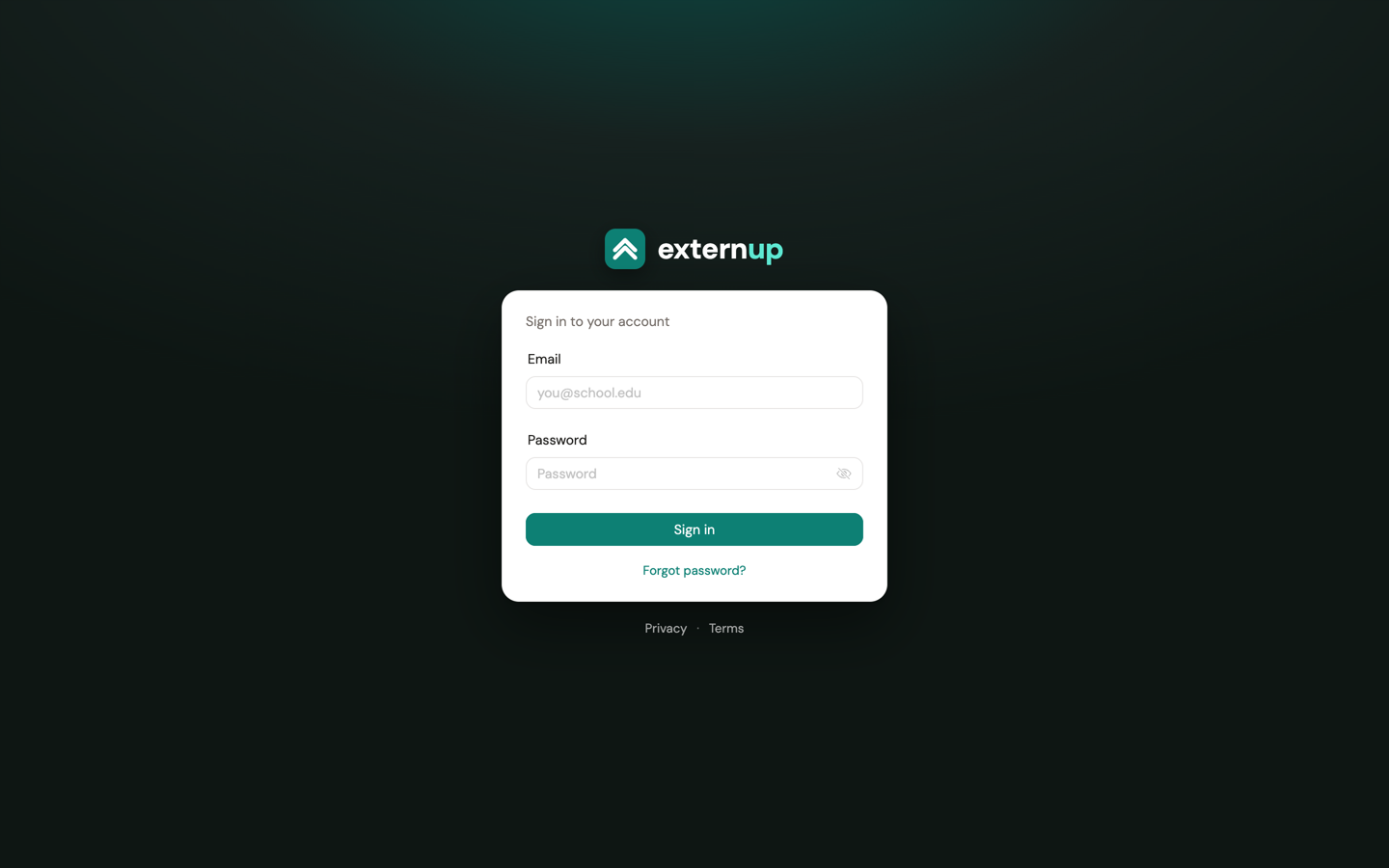
- Every sign-in after that is email and password at app.externup.com/login, plus the 6-digit code on a device you have not trusted.
- Forgot your password? Use Forgot password? on the sign-in page. The emailed reset link works for 1 hour.
The portal at a glance
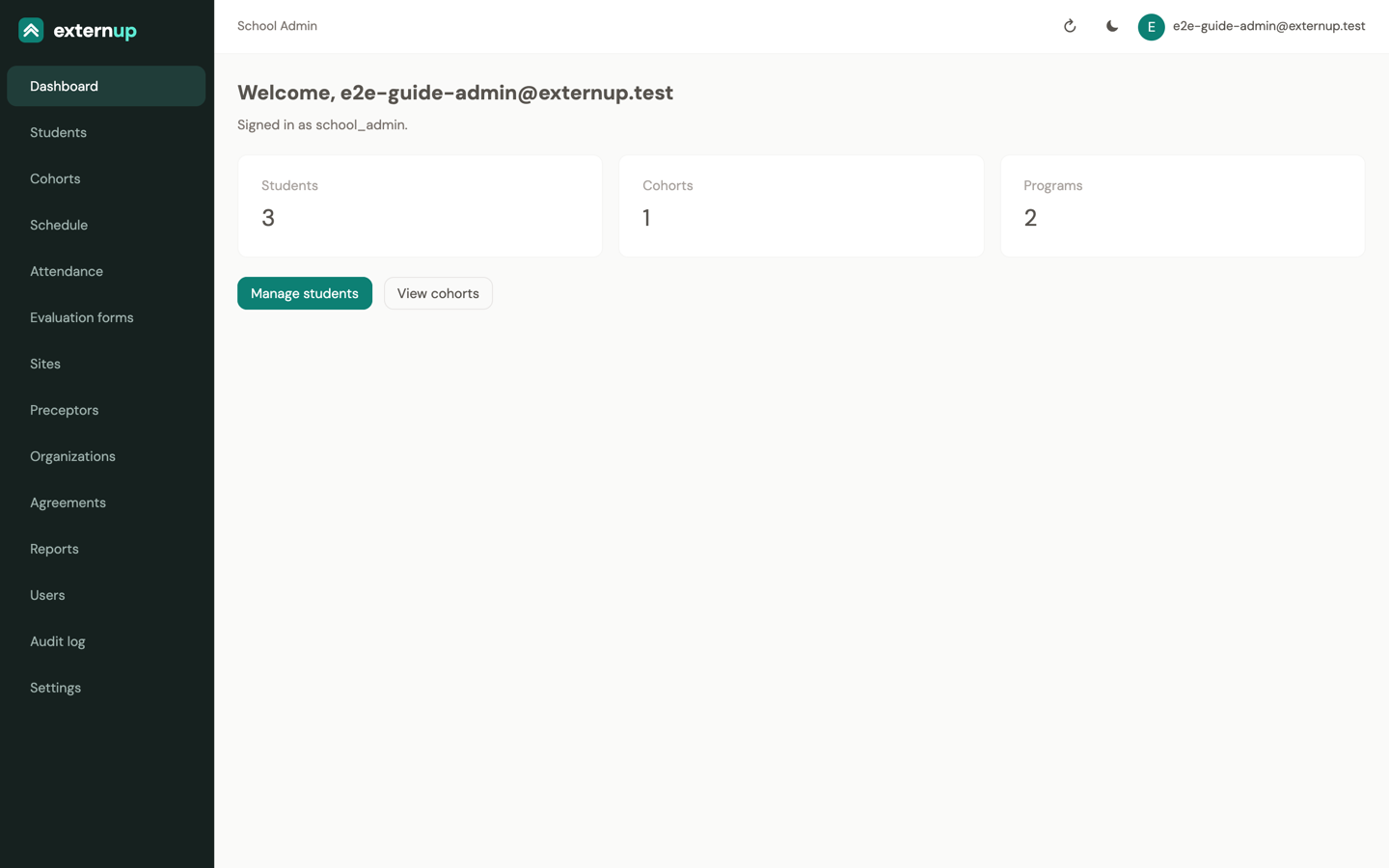
| Page | What it is for |
|---|---|
| Students | The roster. Activate students for externship, edit status and cohort, open a student's page. |
| Cohorts | Required externship hours and milestone evaluation dates per cohort. |
| Schedule | Clinical shifts: who, where, when. Post the night-before details to students. |
| Attendance | Every clocked day: preceptor verification, flags, location, and your approval. |
| Evaluation forms | The forms the app collects: daily reviews, per-shift sign-off questions, completion evaluations. |
| Sites | Where students clock in. Address, GPS pin and radius, instructions for students. |
| Preceptors | The preceptor directory: contact details, license and training dates, sites. |
| Organizations | Health systems or companies that own several sites. |
| Agreements | Signed affiliation agreements and their expiration dates, with the PDF. |
| Reports | Hours by student or site, placements, preceptor directory and credentials, as CSV. |
| Users · Audit log · Settings | School admins only: staff accounts, the record of who did what, and program settings. |
The icon at the top right switches light and dark mode. Your email opens the menu with Sign out.
Organizations and sites
Set these up before scheduling anyone. A site is a place where a student clocks in; the app checks the phone's location against the site's pin. An organization is optional: use it to group a health system's sites and to attach a system-wide agreement.
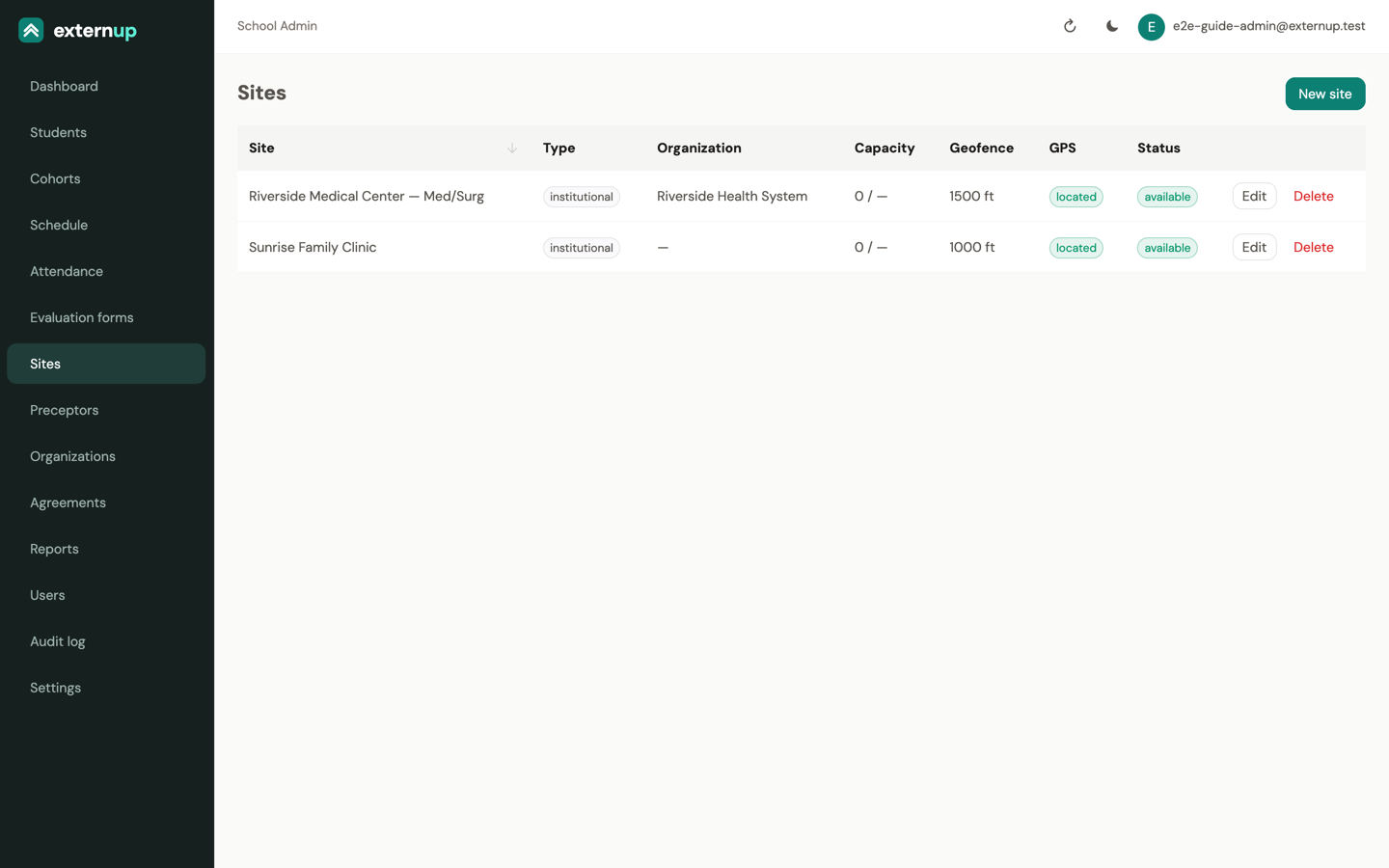
Add a site
- Open Sites and tap New site.
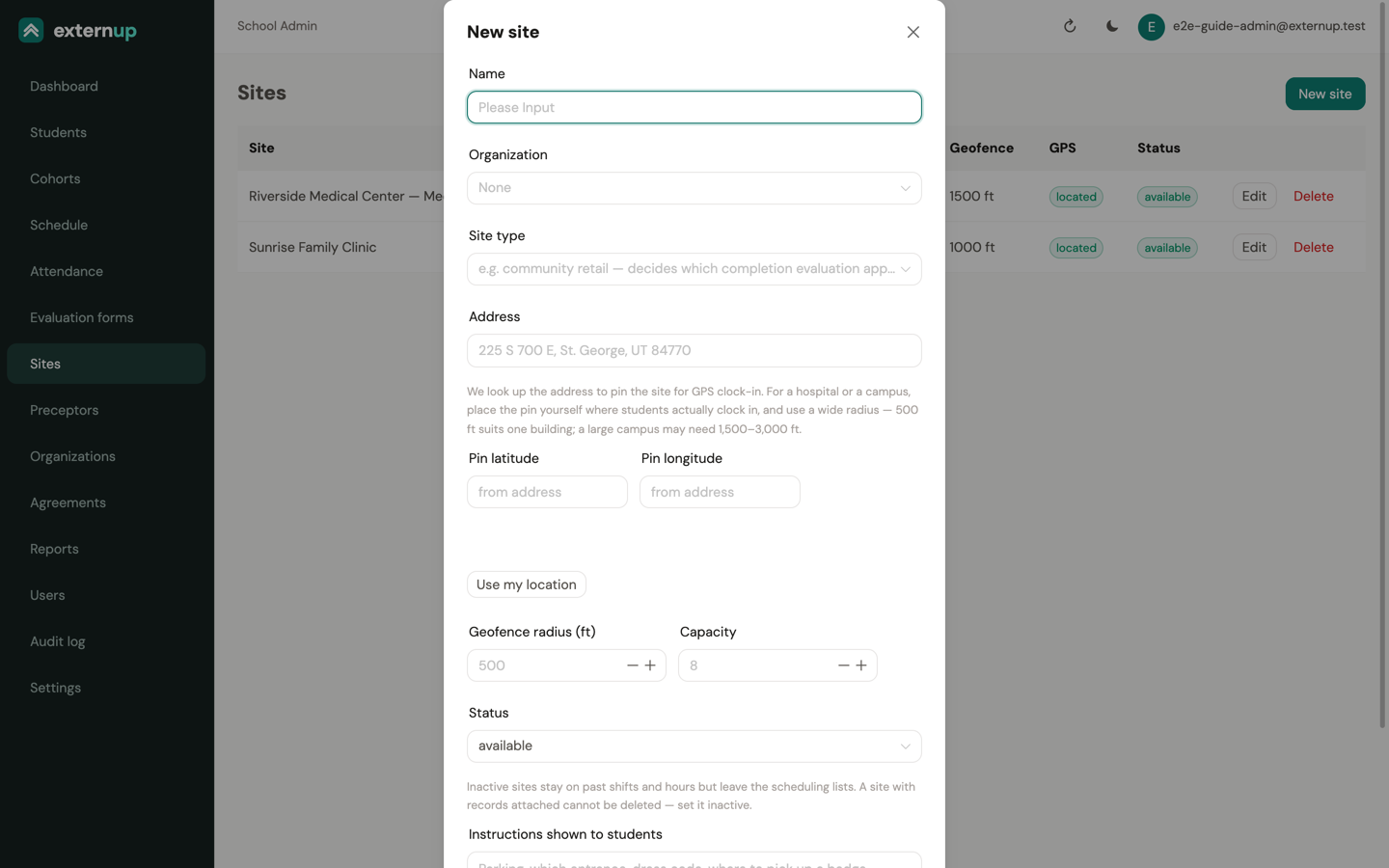
- Enter the Name and, if it belongs to one, the Organization.
- Site type matters for pharmacy: it decides which completion evaluation the preceptor gets (community retail, compounding, institutional, long term care, or your own). Leave it empty for nursing sites.
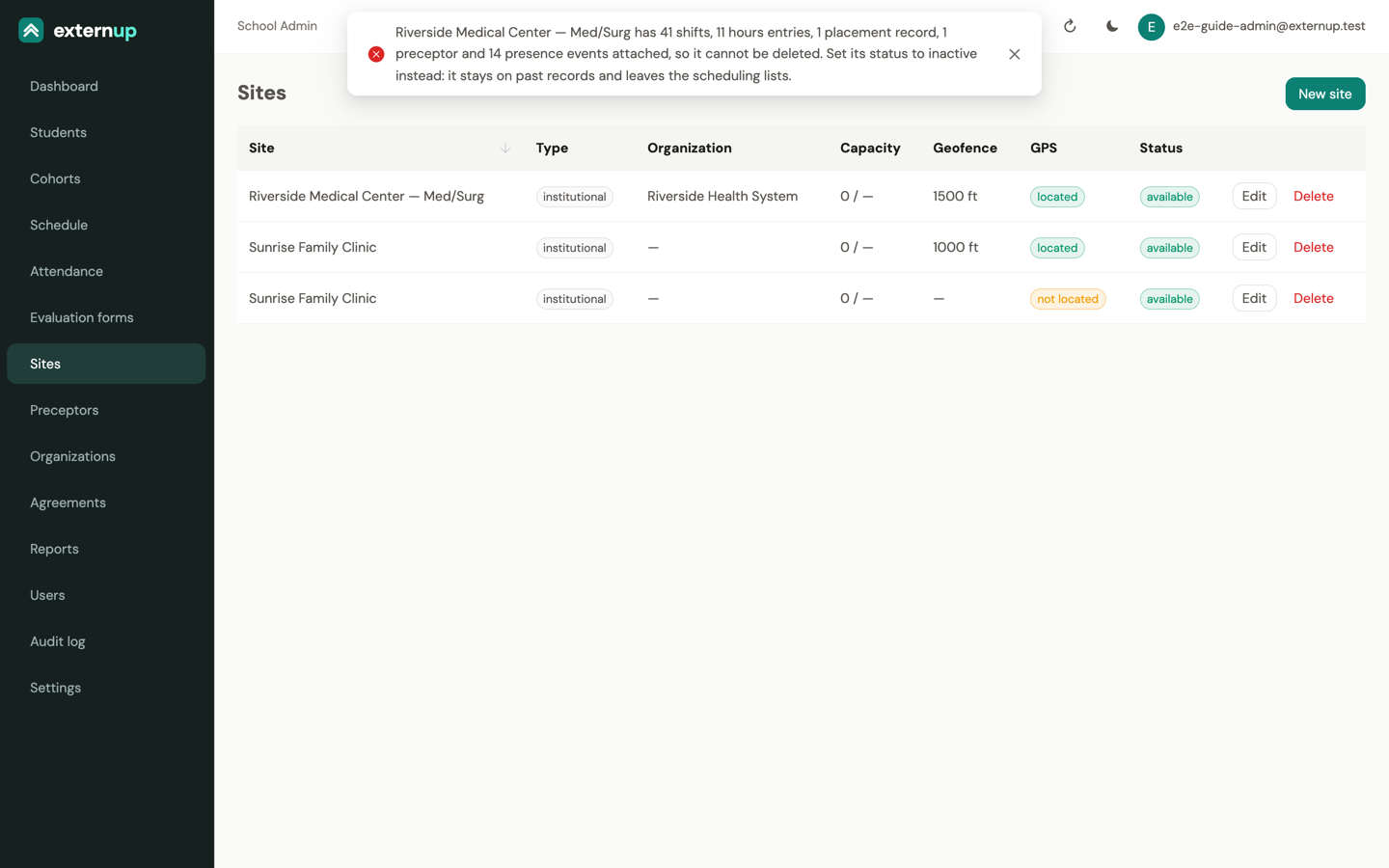
- Type the Address. ExternUp looks it up and places the GPS pin for you. The list shows located when that worked and not located when it did not; fix the address or set the pin yourself.
- For a hospital or campus, move the pin to where students actually clock in: edit Pin latitude and Pin longitude, use Use my location while standing there, and check it with Check pin in Maps.
- Set the Geofence radius (ft). 500 ft suits one building; a large campus may need 1,500 to 3,000 ft. A clock-in outside the radius still records, but it is flagged for your review.
- Write the Instructions shown to students: parking, which entrance, dress code, where to pick up a badge. Students see this on every shift at the site. Staff notes are never shown to students.
- Save.
Remove a site you added by mistake
Tap Delete on the row and confirm. This works while nothing refers to the site. Once shifts, hours, a preceptor, a placement or an agreement point at it, ExternUp refuses and tells you what is attached; set the site's Status to inactive instead. An inactive site stays on past records but disappears from the pickers, so nobody schedules there again. The same rule applies to organizations: move or delete their sites first.
Preceptors
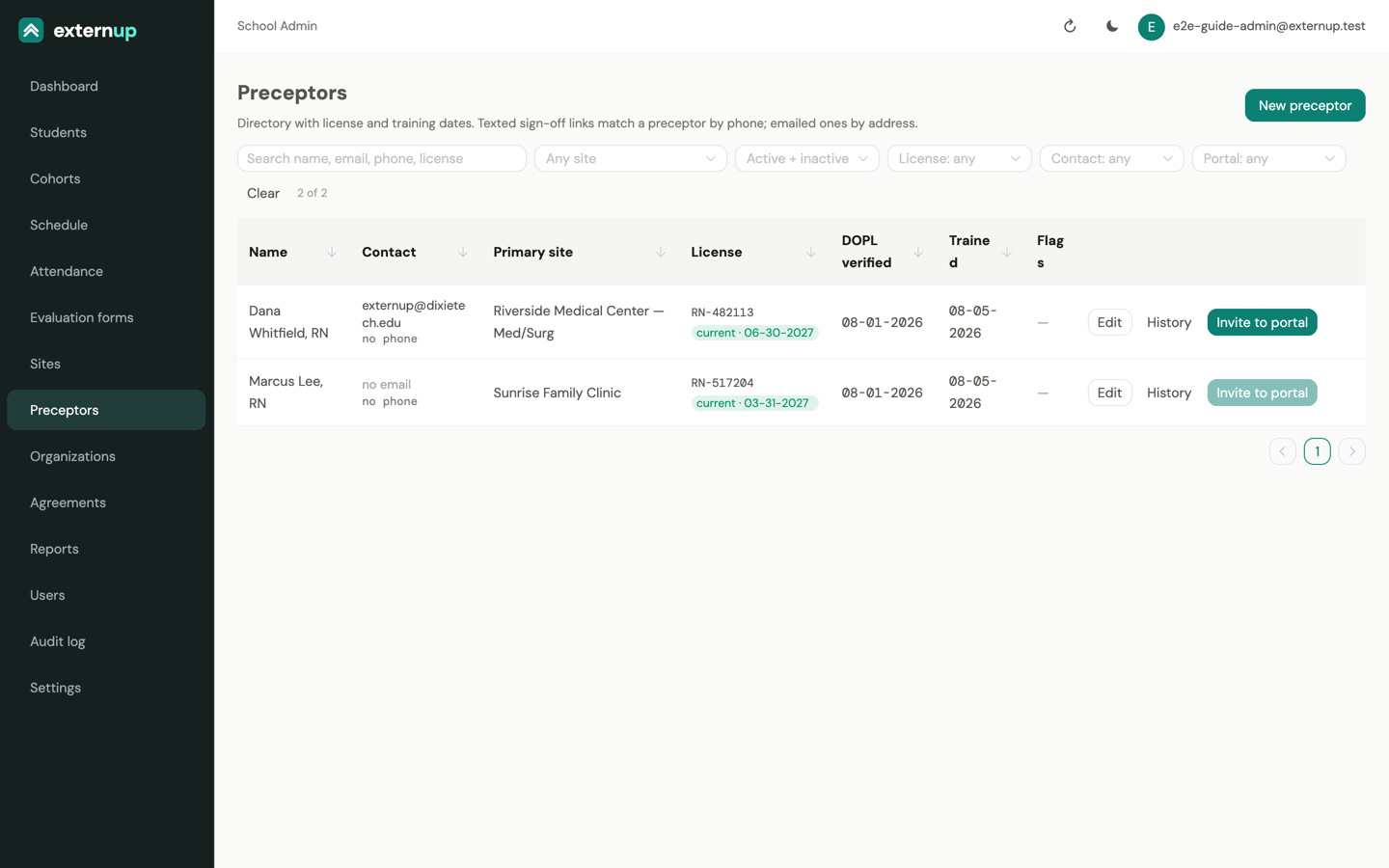
The directory holds every preceptor the school works with. Keep the contact details accurate: when a student texts a sign-off link, ExternUp matches the preceptor by phone number, and for an emailed link by address. That is how the verification is attributed to a known person.
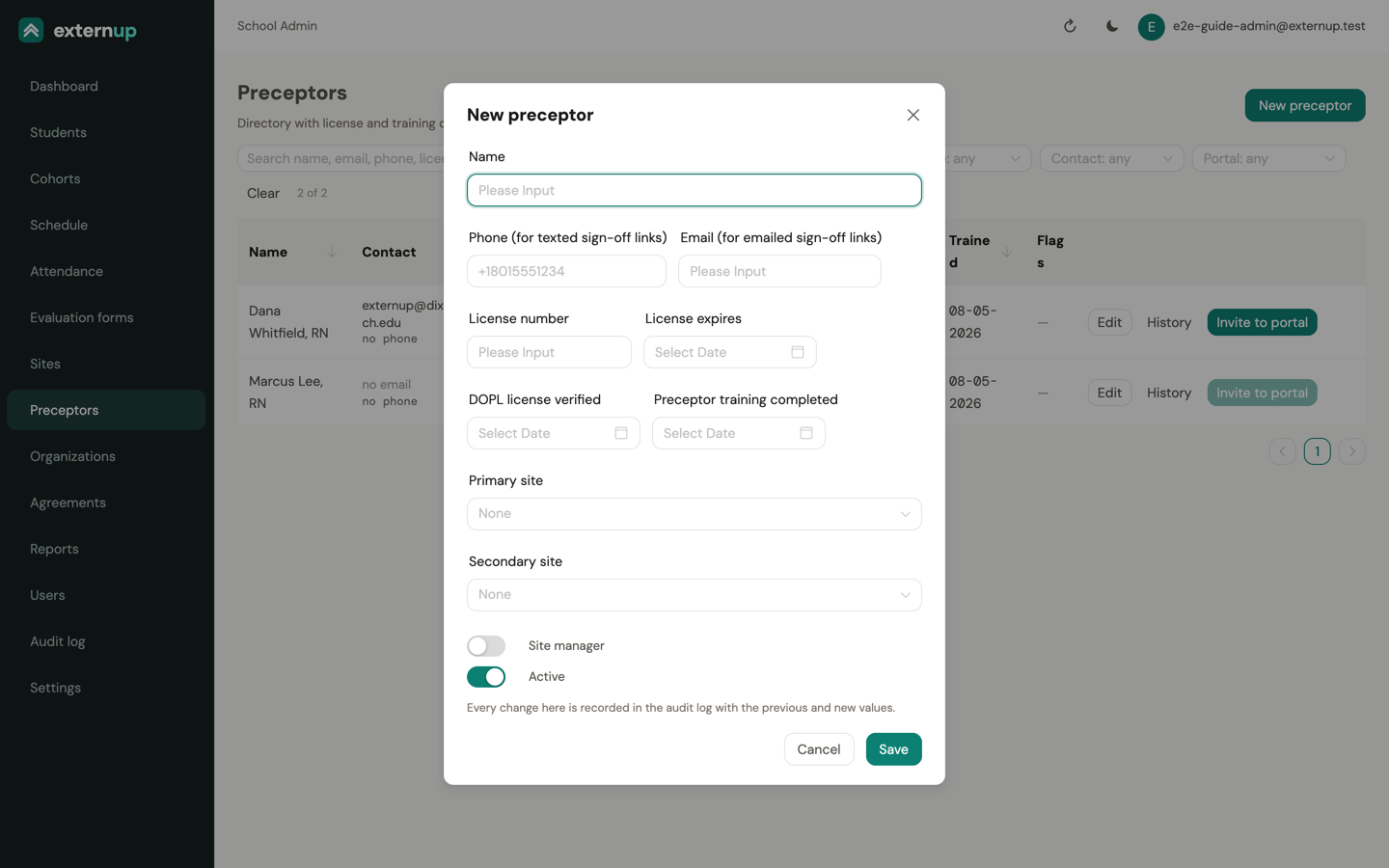
- Open Preceptors and tap New preceptor.
- Enter the Name, the Phone (for texted sign-off links) and the Email (for emailed sign-off links).
- Record the License number, when the License expires, and the dates the DOPL license verified and Preceptor training completed. Filters and the credentials report use these.
- Choose a Primary site and, if they float, a Secondary site. Site manager marks the preceptor who manages the site. Save.
- Nursing (rotating) preceptors never need a login. They verify from the link the student sends. See the preceptor guide.
- Pharmacy (stable) preceptors get a portal. A school admin taps Invite to portal on the preceptor's row once an email is on file. The preceptor sets a password, then verifies hours and completes the end-of-externship evaluation at app.externup.com.
- History shows every student a preceptor has supervised, from assignments, from placements staff recorded, and from the sign-offs they completed.
- Every change to a preceptor is written to the audit log with the old and new values.
Affiliation agreements
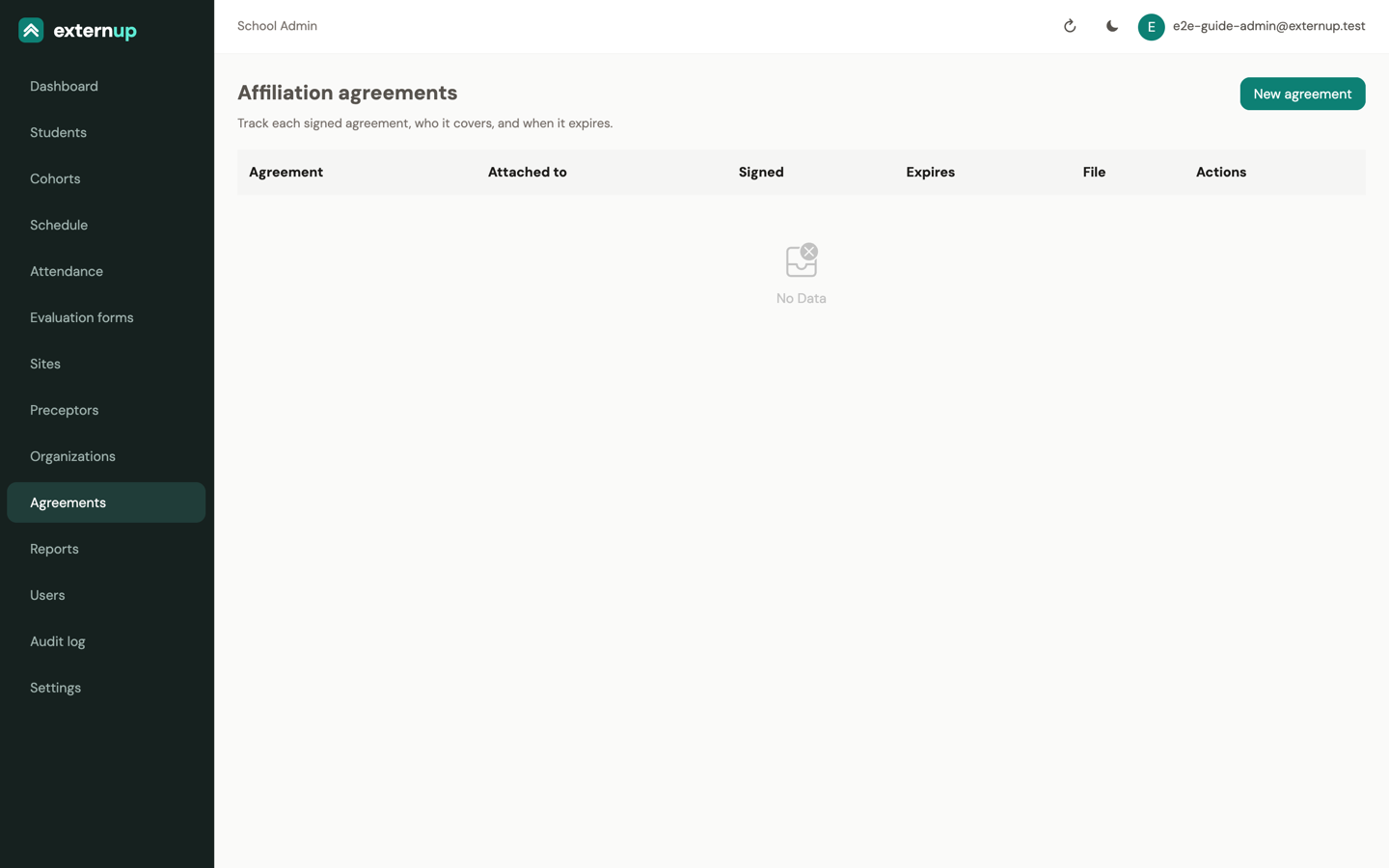
Agreements tracks each signed agreement, who it covers and when it expires. Tap New agreement, attach it to an Organization and/or a Site, give it a title, the signed and expiration dates, and Attach PDF…. The list shows expired and expires in N d badges inside 60 days, and school admins get an email 30 days before and on the day an agreement expires.
Students: roster, activation, status
Where students come from
At Dixie Tech, a student appears on the roster when their application reaches Registered in Zoho, in the right program and cohort. Their status keeps following Zoho: a withdrawn application closes the record, an alumni record marks it completed. You can also add someone by hand with Add student (first and last name, program, cohort, email). An email address is required before a student can be invited to the app.
| Status | Meaning |
|---|---|
| active | Registered, not yet activated for externship. Cannot clock in yet. |
| on_externship | Activated. Has (or is about to get) an app login and can clock in. |
| completed | Finished. Hours stay on record; the app is read-only for them. |
| withdrawn · inactive | Closed. The login is deactivated, future shifts are cancelled, the placement is ended. Every record is kept. |
Activate students for externship
This is the step that sends students their invitation.
- Open Students. Filter by cohort if you like.
- Tap Activate on a row and confirm, or tick several rows and tap Activate N for externship.
- Each student receives Set up your ExternUp account at the email on file. The link works for 7 days. Their status becomes on_externship and the row shows Has login.
- The Activation results box lists each student and whether the email went out.
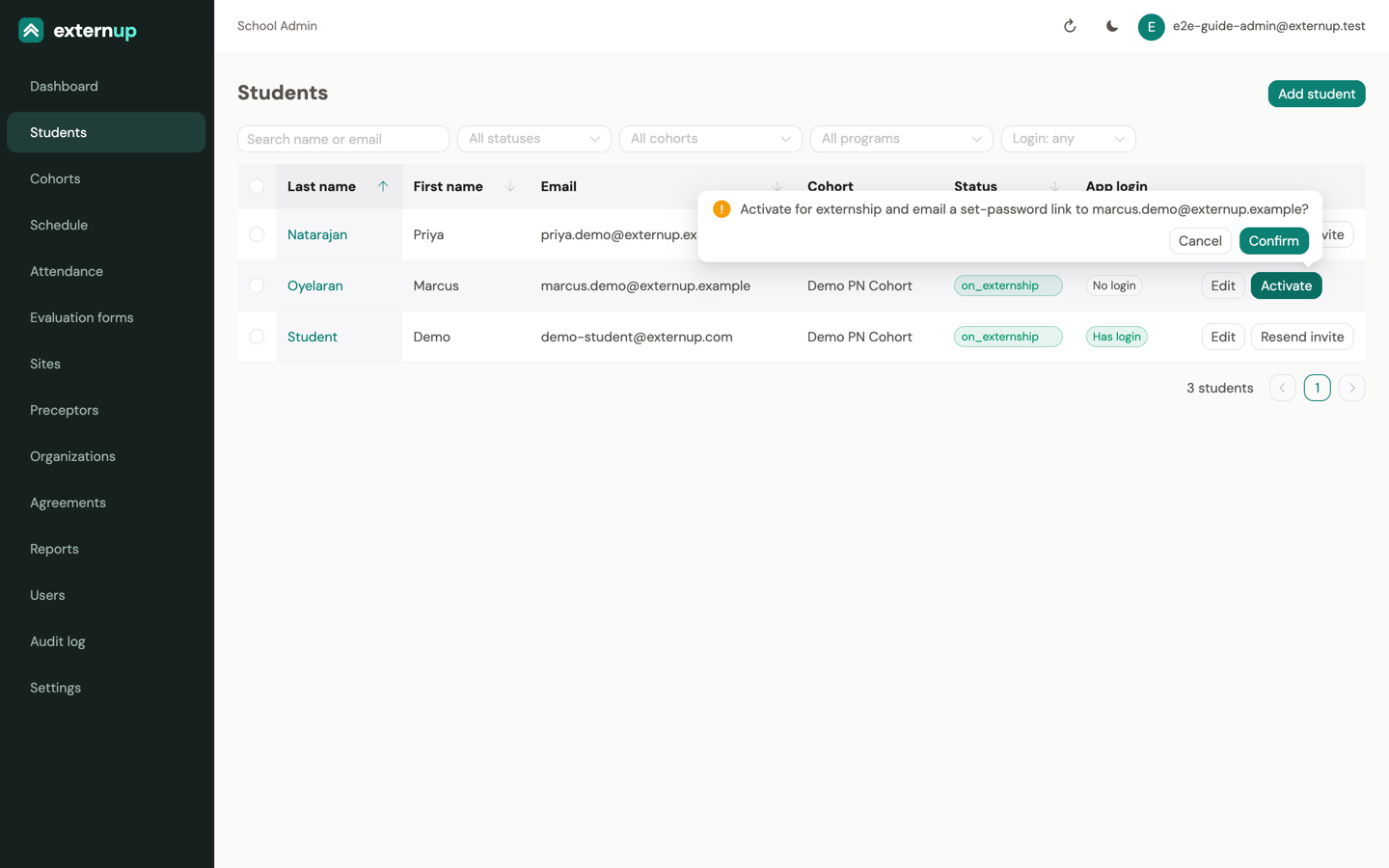
If a student loses the email or the link expires, tap Resend invite: a new 7-day link goes out and the old one stops working. If they already set a password, the same button sends a 1-hour reset link instead.
Edit a student
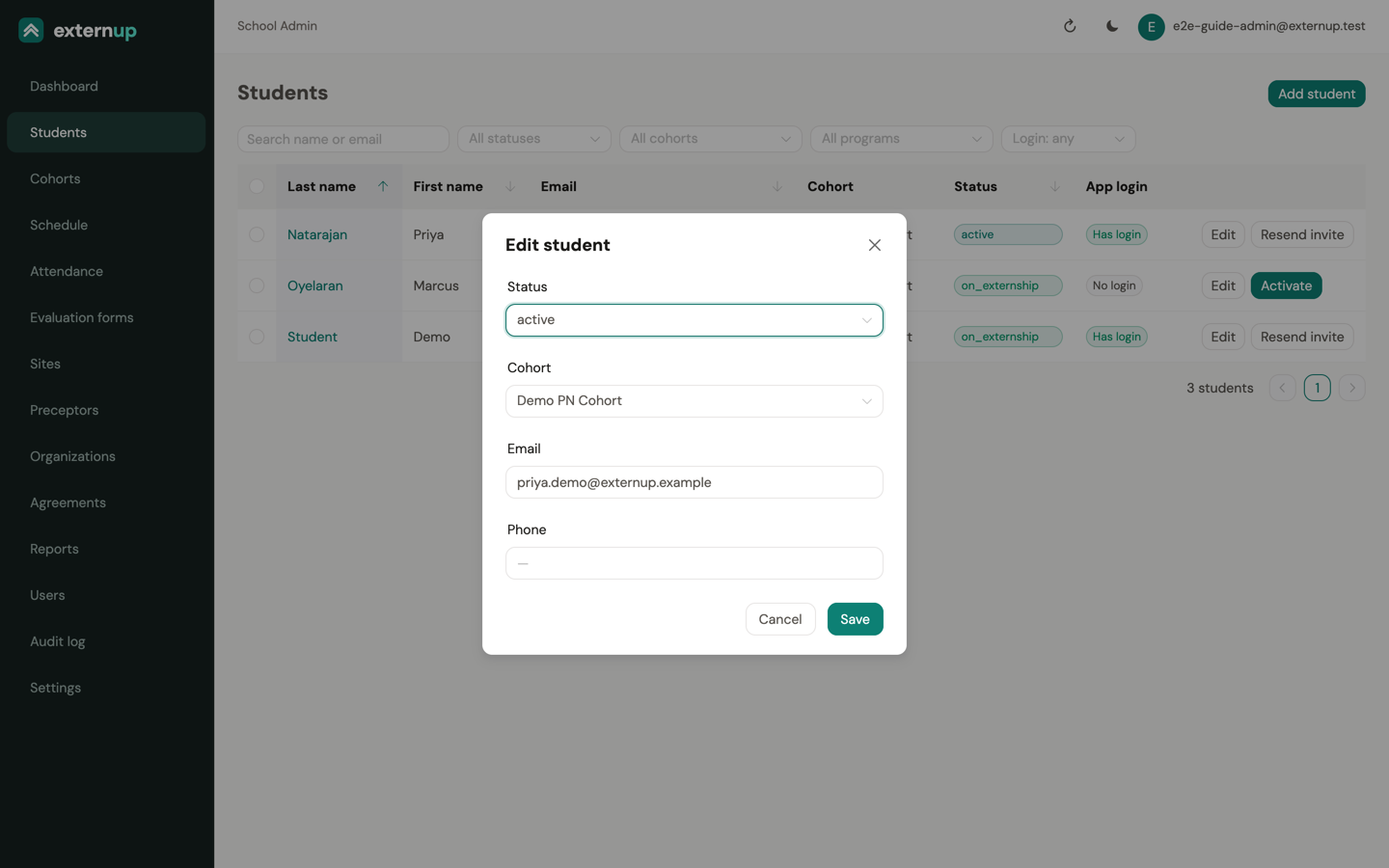
Edit opens status, cohort, email and phone. For pharmacy students the same window holds the Site assignment: pick the Site and the Preceptor and tap Assign. Until a pharmacy student has an active assignment, their clock-ins are flagged. When the externship is over, End closes the assignment and emails the preceptor to complete the evaluation and the student to evaluate the site.
A student's page
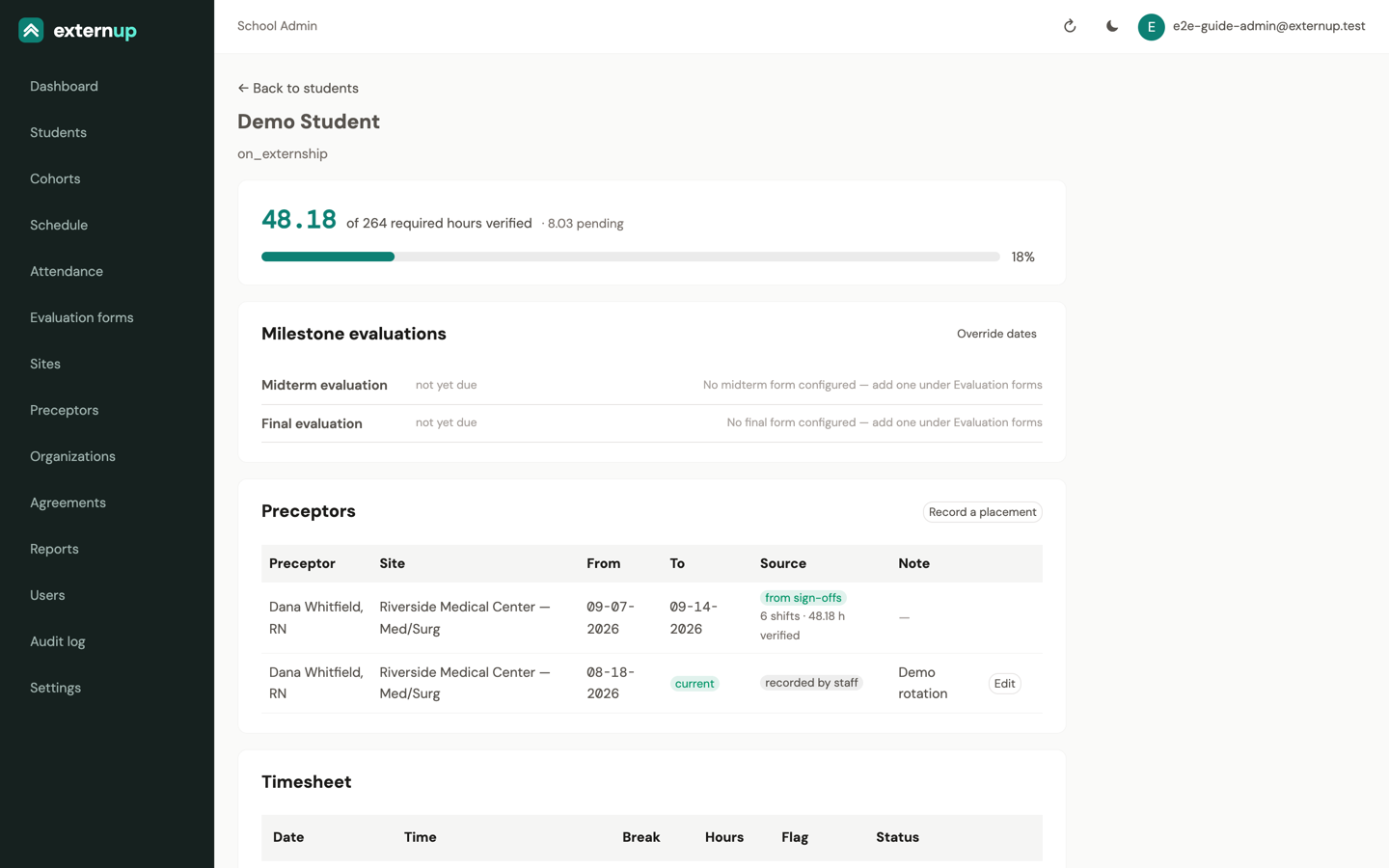
Tap a last name to open the student. The page shows verified hours against the requirement, the Milestone evaluations card (midterm and final: when each is due, Complete … evaluation, and Override dates for this student), the Preceptors card (who supervised them where and when, with Record a placement for rotation plans) and the full Timesheet.
Cohorts and required hours
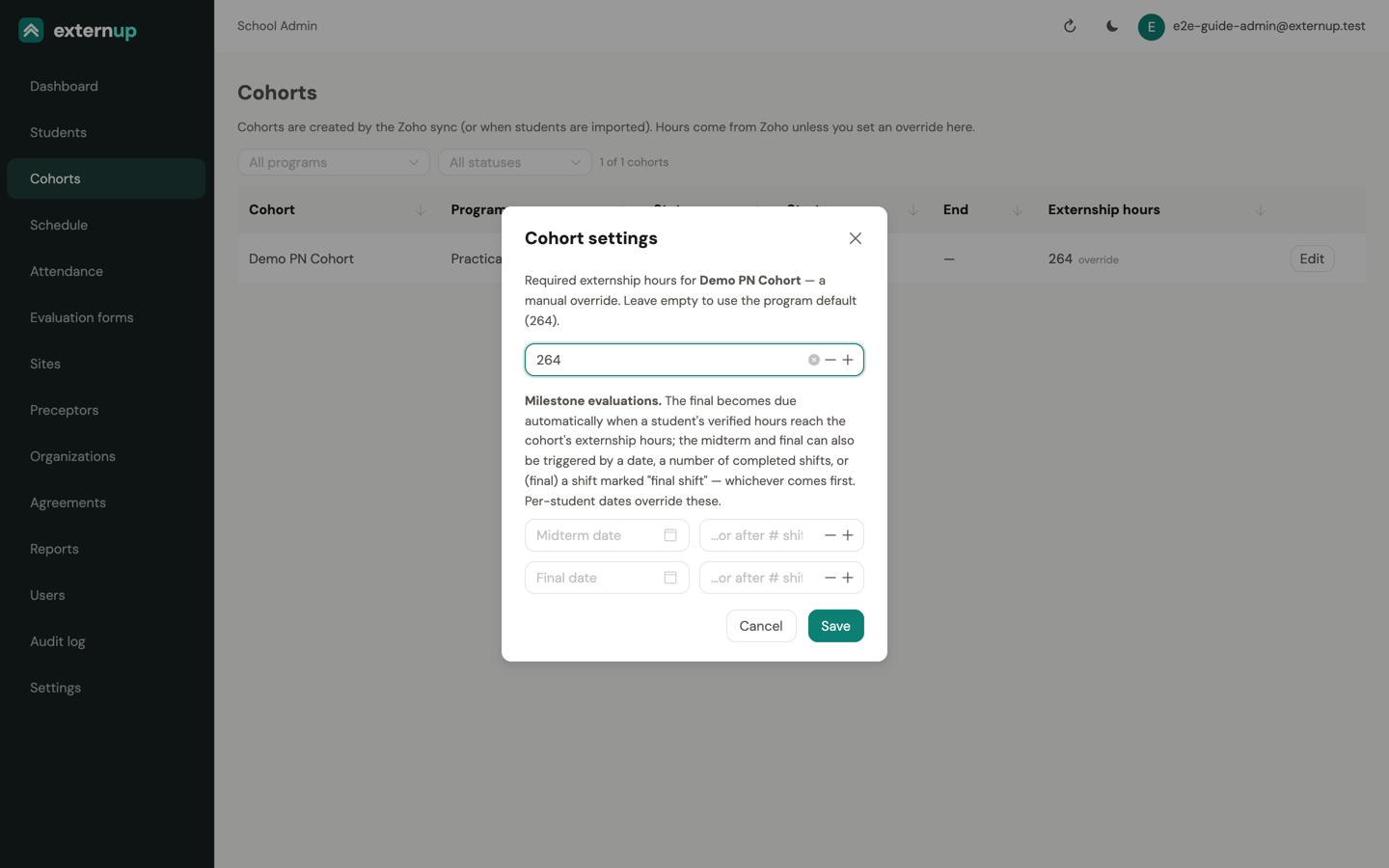
Cohorts are created by the Zoho sync (or when students are imported). Edit opens Cohort settings: the required externship hours (synced from Zoho unless you type an override) and the milestone rules. The final evaluation becomes due on its own when a student's verified hours reach the cohort's requirement; the midterm and final can also be triggered by a date, by a number of completed shifts, or (final) by a shift marked as the final shift, whichever comes first.
Schedule
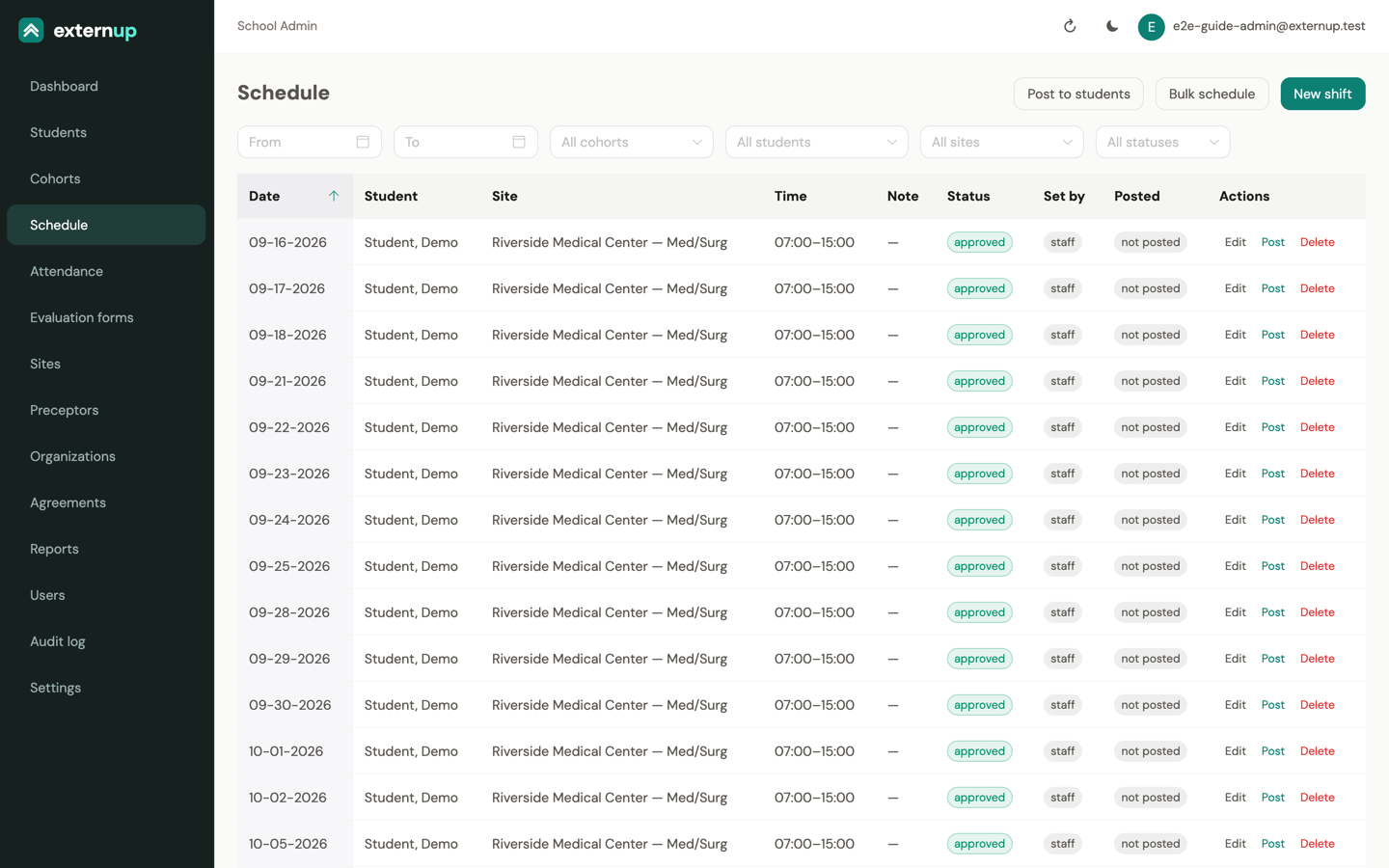
The Schedule page lists every shift with its student, site, time, status and who set it. Filter by date, cohort, student, site or status.
Nursing: build the rotation, then post each day
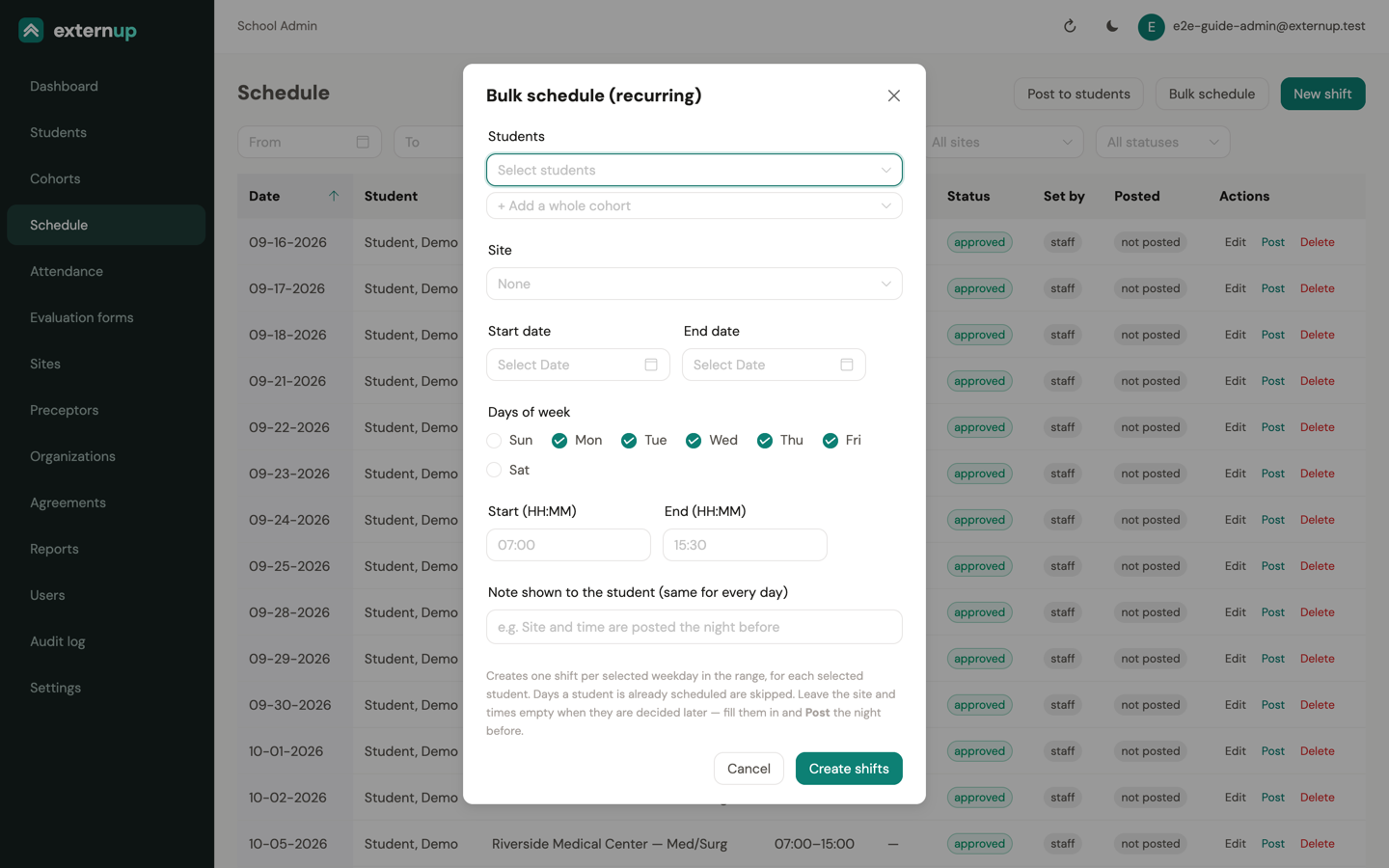
- Bulk schedule creates the clinical days: pick the students or + Add a whole cohort, the date range and the days of the week, and tap Create shifts. Leave the site and times empty if they are decided later. Days a student already has are skipped, never doubled.
- New shift adds one day for one or more students, with the site, start and end, a Note shown to the student (unit, where to report, who to call), and a tick box to mark it as the student's final shift.
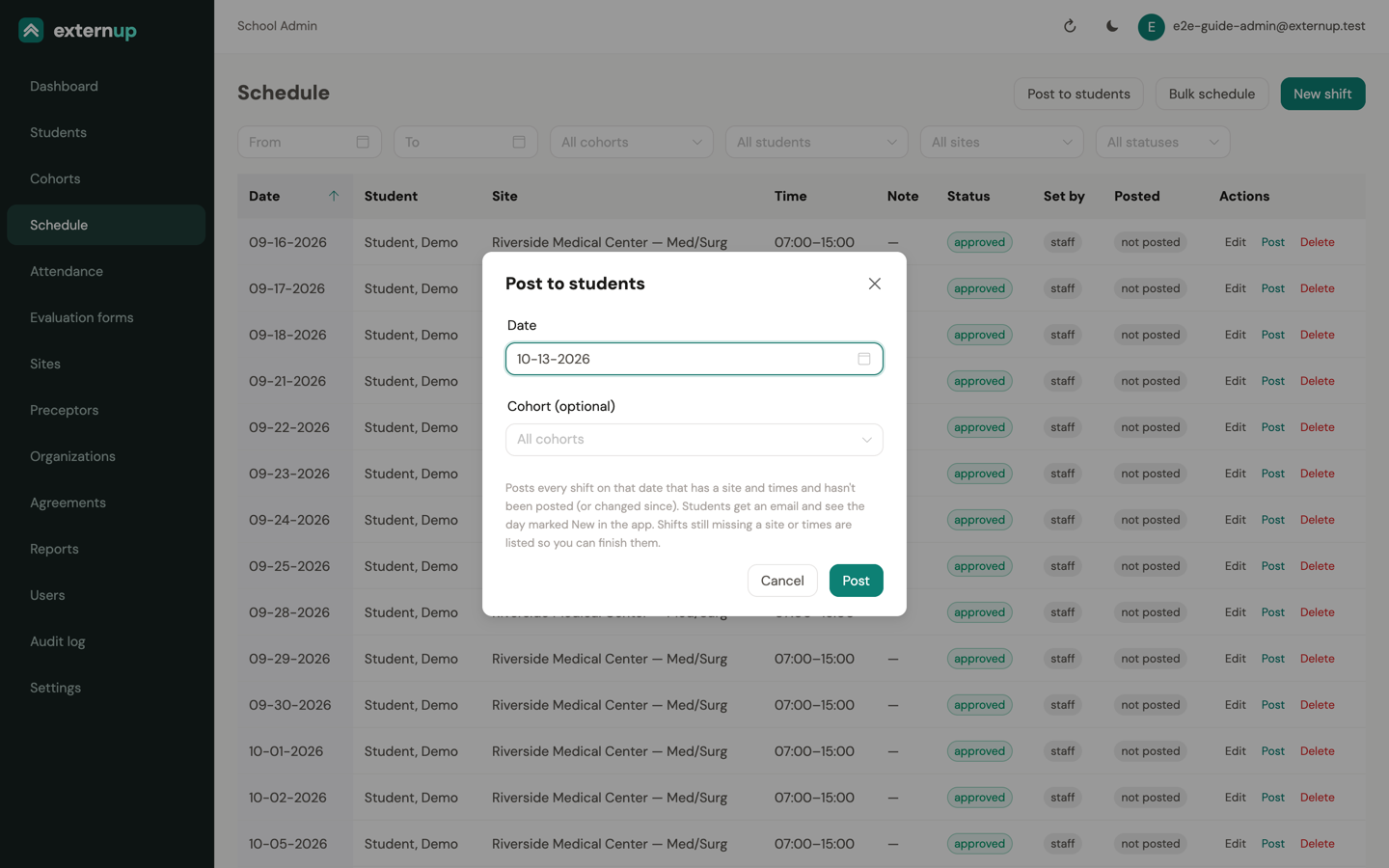
- The evening before, fill in any missing site or times with Edit, then tap Post to students. Pick the date (it defaults to tomorrow) and, optionally, a cohort. Every shift on that date with a site and times is posted: students get an email, Posted: your clinical assignment for …, and see the day marked New in the app. Shifts still missing details are listed so you can finish them. Post on a single row does the same for one student; after a change, the row shows changed since posted and offers Re-post.
Pharmacy: students and preceptors schedule themselves
Pharmacy students add the days they agreed on with their preceptor from the app, and preceptors can add shifts from their portal. Those shifts land at the assigned site, already approved, and show up here with student or preceptor in the Set by column. Use New shift only when staff need to set a day.
Edit changes any shift. Delete removes it. Approve and Reject appear on shifts that are still pending.
Attendance and verification
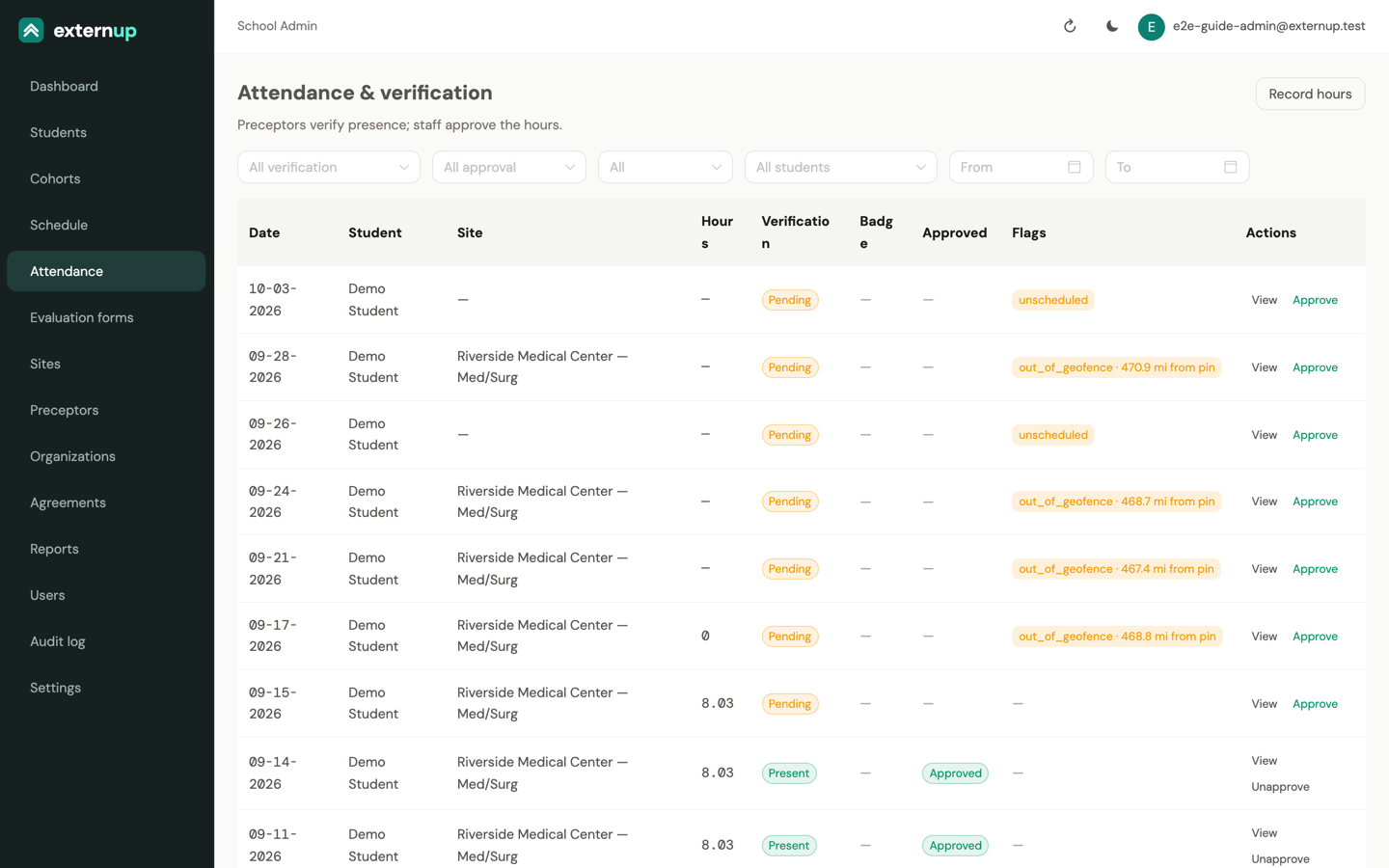
Two different people sign off on a clocked day, and the words are deliberate: preceptors verify that the student was present (present or disputed); staff approve the hours. Attendance lists every clocked day with both.
Flags
A flag means the day needs a look, not that it is wrong. A flag never blocks approval.
| Flag | Meaning |
|---|---|
| unscheduled | The student clocked in on a day with no shift. |
| no_assignment | A pharmacy student without an active site assignment. |
| out_of_geofence · N ft from pin | The clock-in or clock-out was outside the site's radius. Large campus or a pin on the wrong building? Widen the radius or move the pin under Sites. |
| left_site | The phone reported the student away from the site for more than 5 minutes outside a break. |
| presence_off | Site monitoring was off during the shift (location not set to Always). |
| recorded by staff · entered by student | Hours typed in rather than clocked. |
Review a day
View opens the detail: clock-in and clock-out with their distance from the pin and inside or outside geofence, the on-site timeline (whether the phone was watching the site, exits and returns, the student's confirmations), the preceptor sign-off (outcome, who it went to, the badge photo for texted and QR links), the per-shift evaluation and the student's daily review, and Hours & approval.
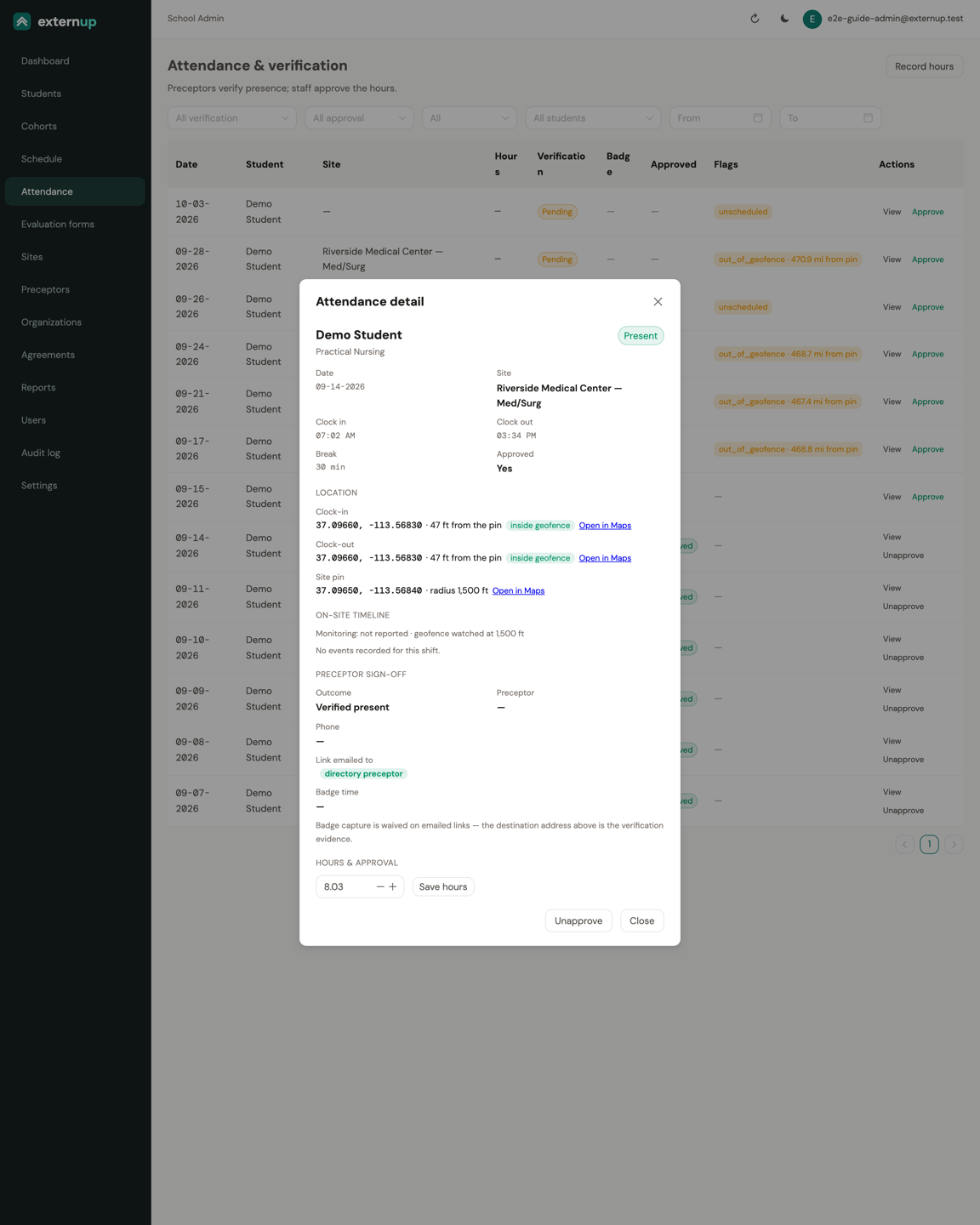
- Approve with Approve on the row or Approve hours in the detail. Unapprove reverses it.
- Clear a flag with Clear flag and a note of what you found. The flag stays visible, marked cleared, with your name and note.
- Correct the hours in the detail and Save hours. If the day was already approved you are asked to approve it again.
- Resolve a dispute. When a preceptor answered No, Resolve dispute asks whether the hours stand or the record should be adjusted, with a note. The student is emailed the outcome.
Record hours for a student
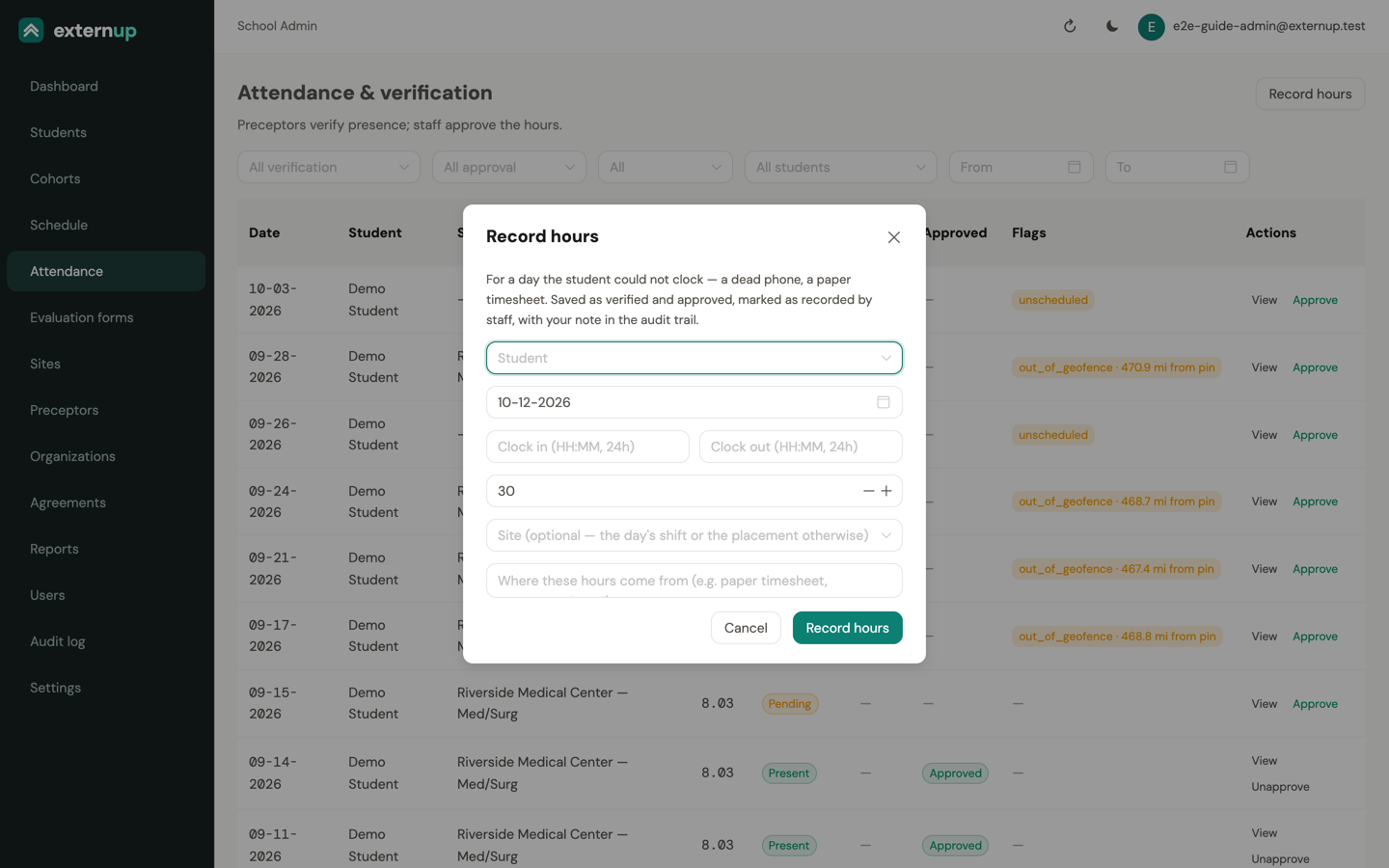
For a day the student could not clock (a dead phone, a paper timesheet), tap Record hours: student, date, clock in and out, unpaid break, the site if needed, and where the hours come from. They are saved as verified and approved and marked as recorded by staff, with your note in the audit trail. Future dates are not allowed.
Evaluation forms
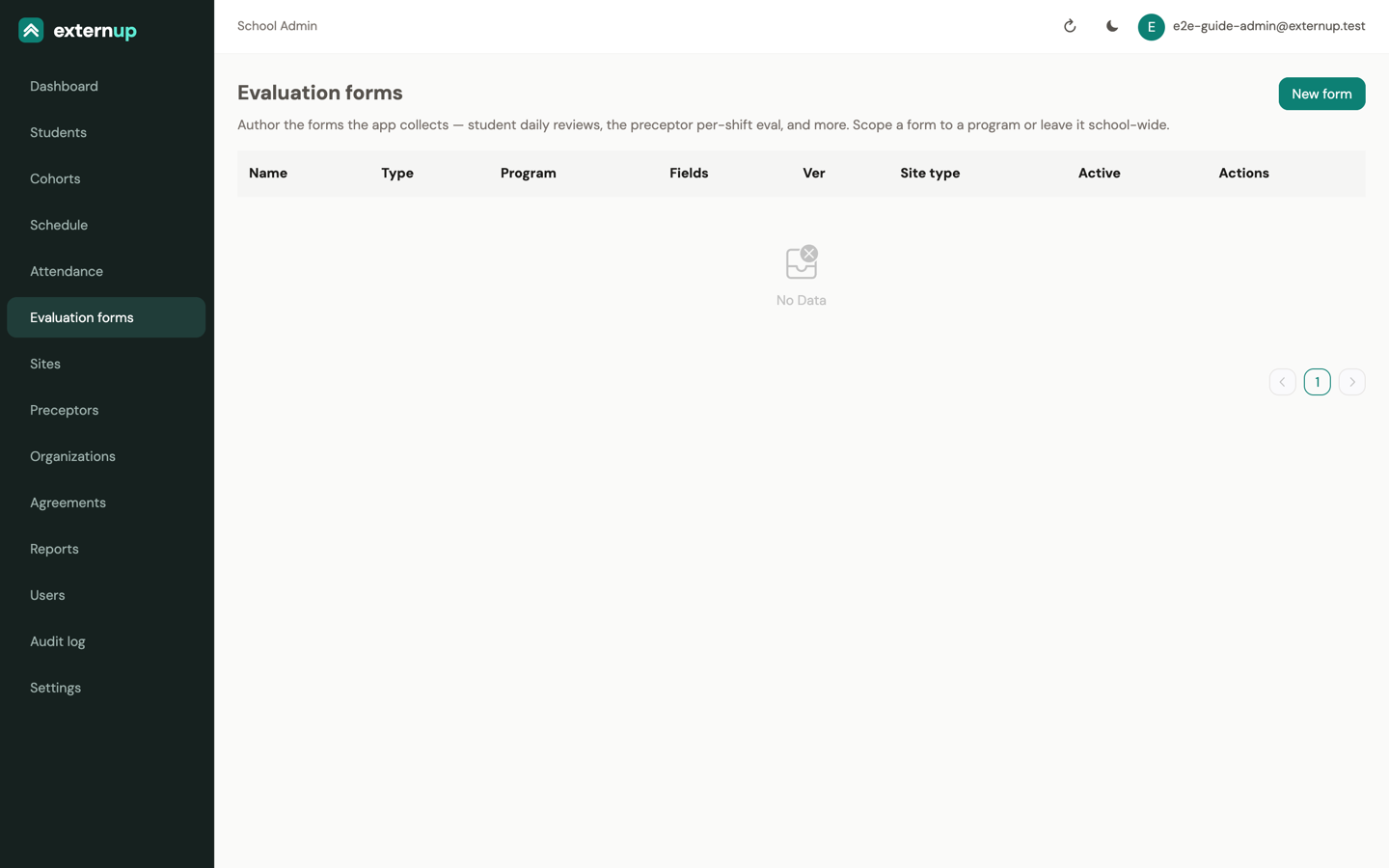
Evaluation forms holds the forms the app collects. Each has a type, an optional program, and for completion forms a site type. Types: the preceptor per-shift evaluation and the student daily review (rotating programs), the preceptor completion evaluation and the student-to-site evaluation (stable programs), the DOPL affidavit, and the staff midterm and final evaluations. New form opens the builder: add questions and section headings, mark questions required, and watch the preview. Only forms marked Active are used. Deleting a form keeps every evaluation already submitted with it.
Reports
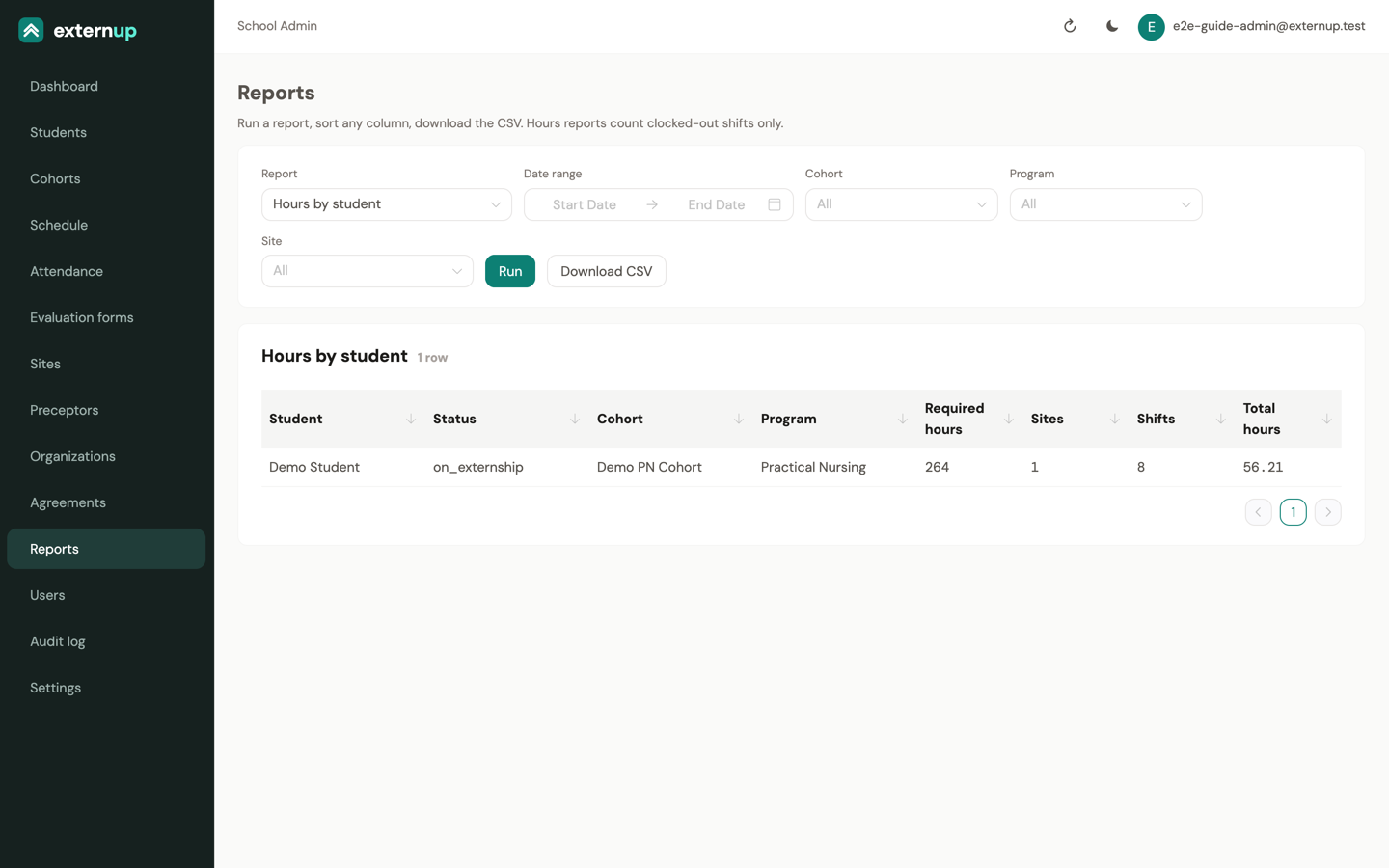
Five reports, each with its own filters: Hours by student, Hours by site, Students by site or preceptor, Preceptor directory and Preceptor credentials. Choose the filters, tap Run, sort any column, and Download CSV. Hours reports count clocked-out shifts only.
Users, audit log and settings (admins)
Add an instructor or another admin
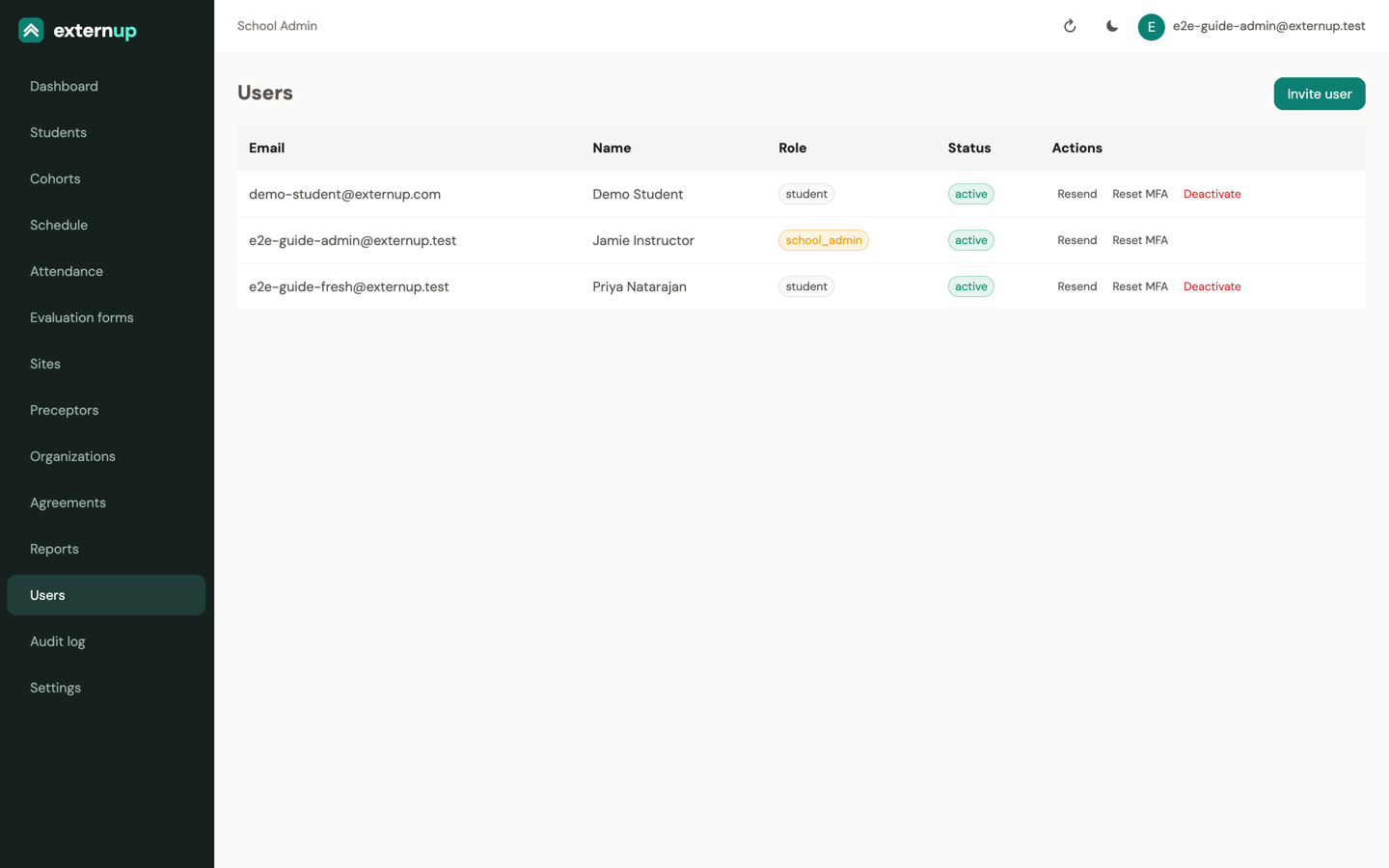
- Open Users and tap Invite user.
- Enter the email, the name, and the Role: Instructor for program staff, School Admin for someone who also manages accounts and settings, Preceptor for a pharmacy preceptor's portal login.
- Send invite. They receive Set up your ExternUp account; the link works for 7 days.
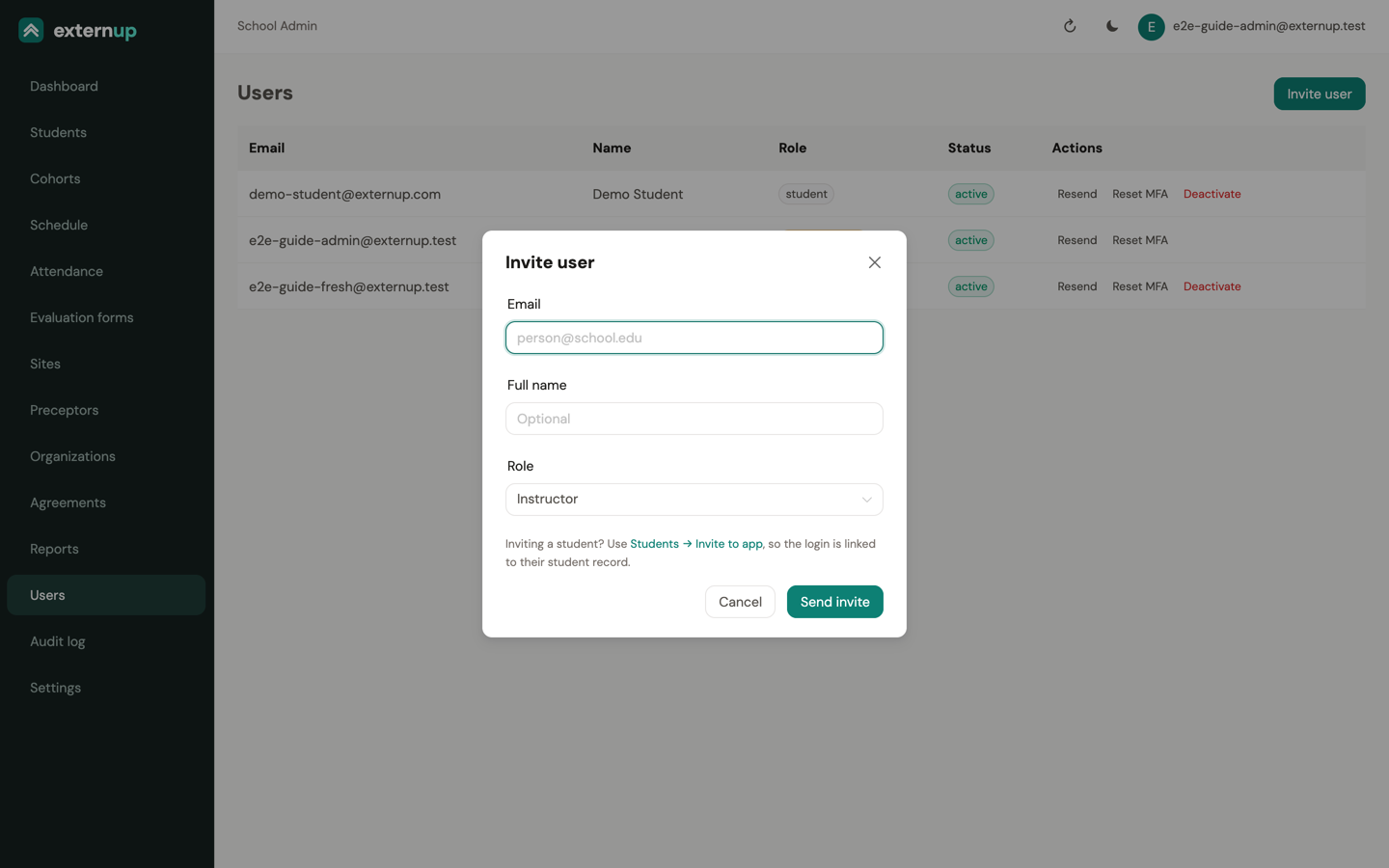
- Students are not invited here. Use Activate on the Students page so the login is linked to the student's record.
- Resend sends a fresh link. Reset MFA clears someone's authenticator and trusted devices so they can set it up again on a new phone. Deactivate blocks a login; Reactivate restores it. You cannot deactivate yourself or the last school admin.
Audit log
An append-only record of staff changes, approvals, sign-ins and public sign-off submissions, with who did it and when. Filter by action or date.
Settings
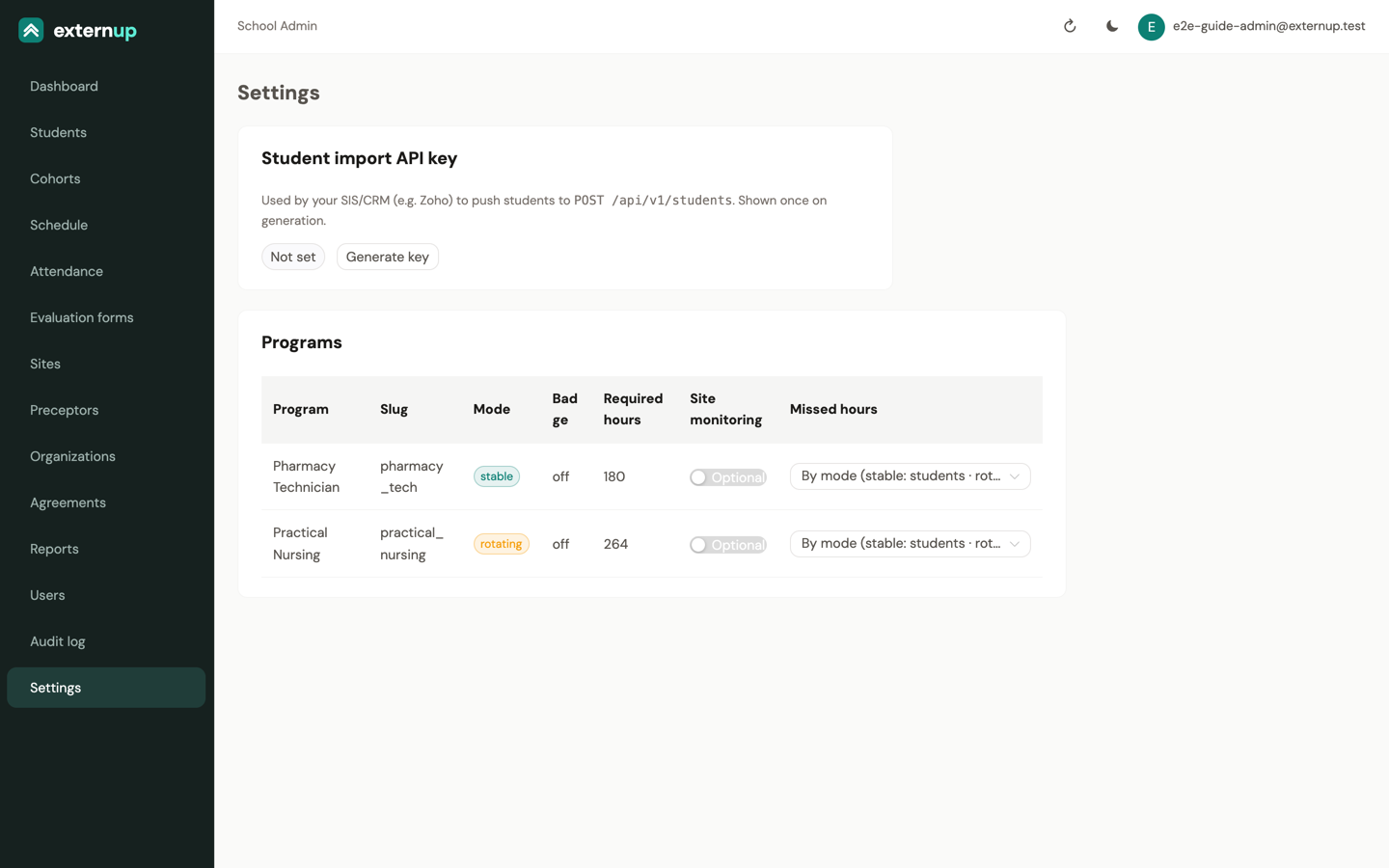
Per program: whether site monitoring is Required (students must allow Always location to clock in) or Optional, and the missed hours rule (who may add a day after the fact). The student import API key is what Zoho uses to push students; it is shown once when generated.
When something goes wrong
| Situation | What to do |
|---|---|
| A student cannot clock in | Clock-in only works in the phone app, not in a browser. Check the student's status is on_externship. If the program requires site monitoring (see Settings), the phone's location permission must be Always (Android: Allow all the time) with precise location on; the app tells the student how to set it and offers Open Settings. For pharmacy, the student needs an active site assignment. |
| A student's invitation link expired | Resend invite on the Students page. The student can also open the old link and tap Send me a new link. |
| A preceptor's sign-off link expired or says it is not valid | Links work once and for 24 hours. The student taps Request preceptor sign-off again; the new link replaces the old one. |
| A phone died mid-shift | The student can clock out from a browser at app.externup.com (only clocking in is app-only). If the day was missed entirely, use Record hours on Attendance. |
| Every clock-in at a site is flagged out of geofence | Open the site under Sites: move the pin to where students stand and widen the radius. Clear the existing flags with a note. |
| Two sites with the same name | Delete the one with nothing attached; if both have records, set the duplicate's status to inactive and edit its shifts over to the right site. |
| Someone new needs portal access | A school admin invites them from Users with the Instructor role. |
| Something else | Support or externup@dixietech.edu. |