 externup
ExternUp for preceptors
Last updated October 12, 2026
Students you supervise record their hours in ExternUp. Your part is to confirm they were with you. For most programs that is a one-minute link, no account needed. Pharmacy preceptors also get a small portal.
Verify attendance from a link
At the end of a shift the student asks you to verify. You get an email with the subject Please verify <student>'s clinical attendance today, a text message with a link, or the student shows you a QR code to scan with your phone camera. All three open the same page.
- Open the link. The page shows the student's name, program, site, date and the hours they clocked — or still clocked in when the student asked you before leaving the unit (they clock out later, at their huddle; verify the time you supervised).
- Answer Was this student present with you during these hours? with Yes — verify present or No — I can't verify this.
- If the program asks preceptors to rate each shift, a short Shift evaluation appears next. Items marked required must be answered.
- If the link came by text or QR code, the page asks for a Photo of your work badge. Hold your badge up to the camera and tap Capture photo, then Submit verification. There is no upload button: the photo is taken live so the school knows who verified. Links sent by email skip this step.
- Chose No? Add a short note under Report a problem if you can, then Submit. School staff follow up with the student.
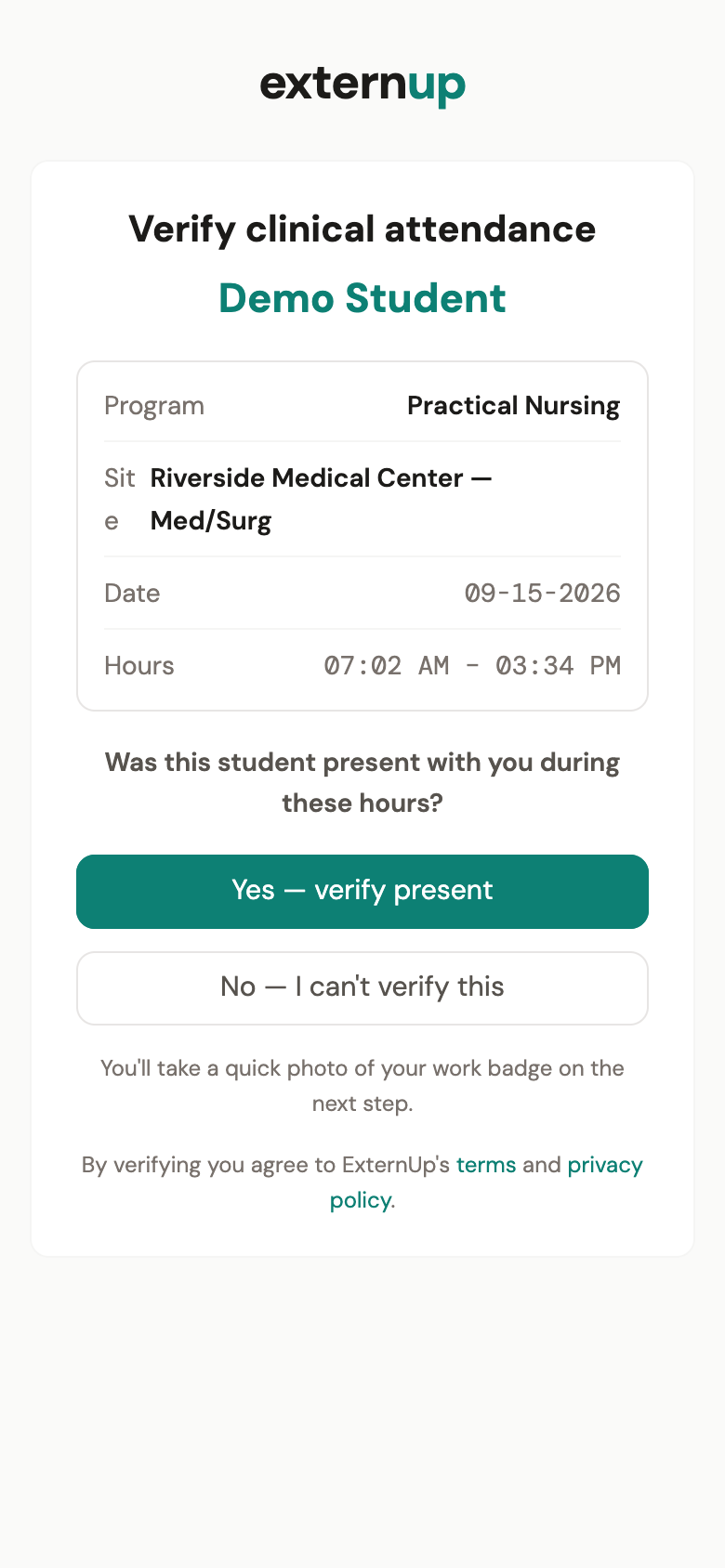
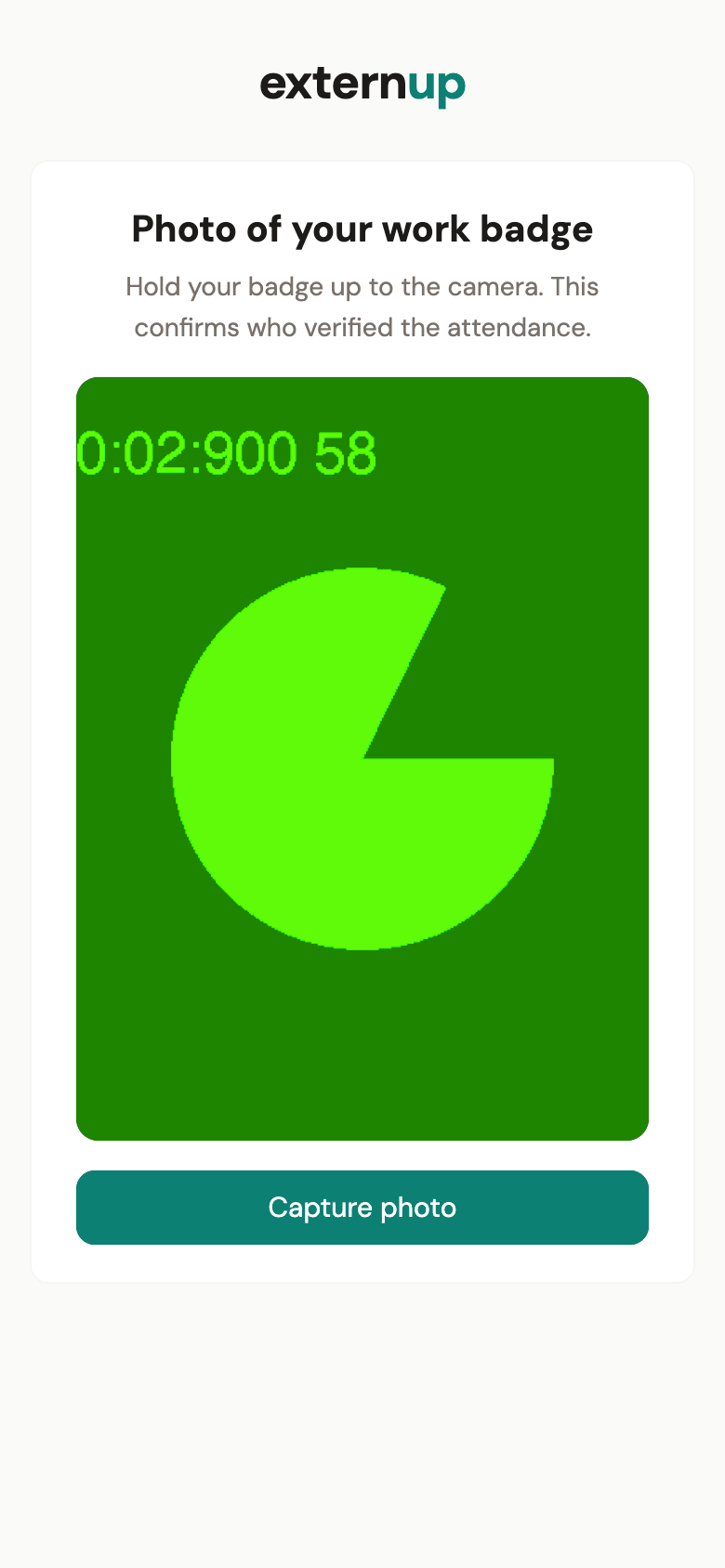
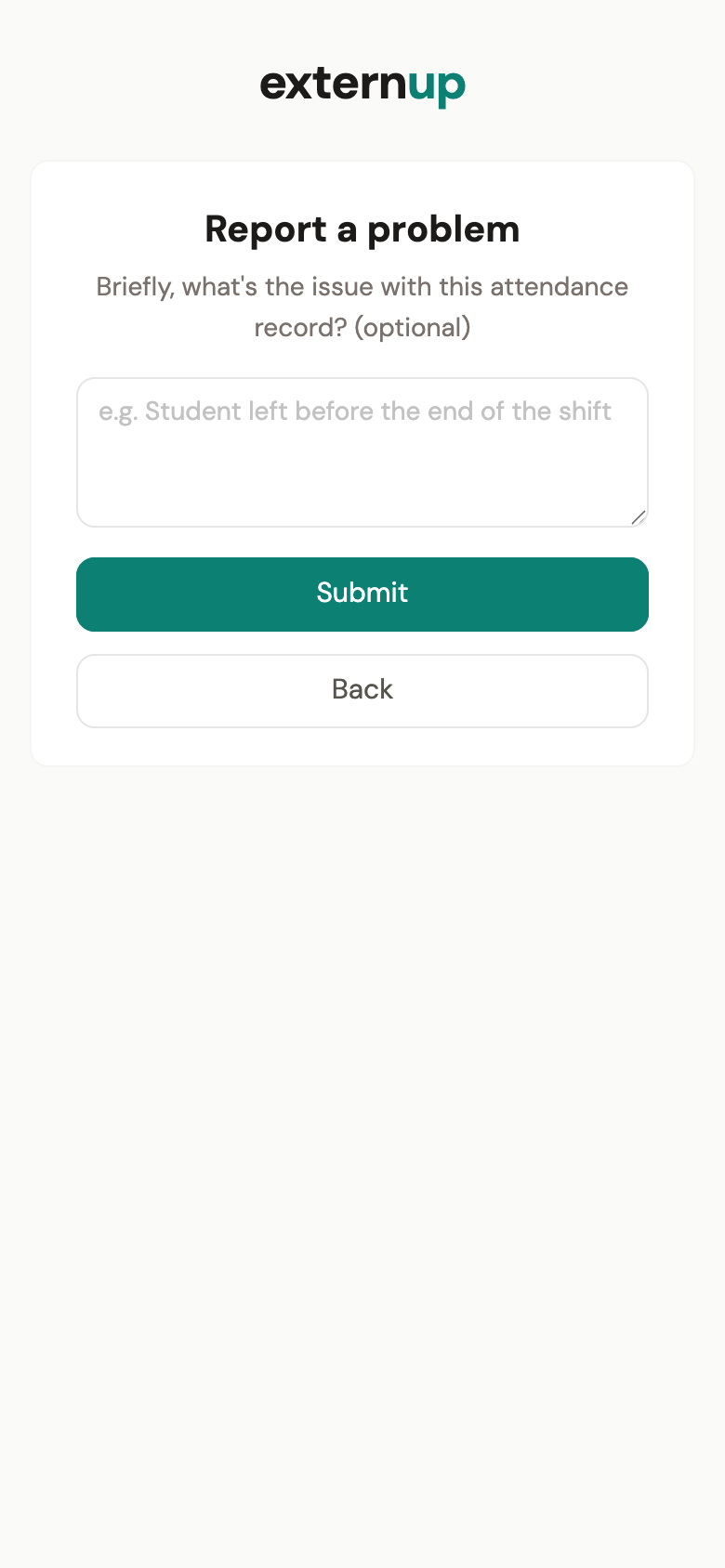
When you are done the page says Thank you. The student's hours are now marked verified (or disputed) and the school finalizes them. You will not be asked again for that shift.
Each link is for one shift and works once. It expires after 24 hours. If a student asks you on two different days, you get two links.
If the link does not work
| The page says | What it means |
|---|---|
| This link has expired | More than 24 hours passed and the shift is still unverified. Ask the student to send a new link from their app. It takes them a moment. |
| Already completed | This shift was verified already. Nothing more to do. |
| Link not valid | The student sent a newer link, which replaced this one, or the address was mistyped. Ask the student to send it again. |
| Camera access is required to verify the badge | Your browser blocked the camera. Allow it for the page and reload, or ask the student to email the link instead, which does not need a photo. |
| No connection | Your phone could not reach ExternUp. The link is still valid: open it again when you have signal. |
The preceptor portal (pharmacy)
Pharmacy students stay with one preceptor for the whole externship, so the school gives that preceptor a login instead of a link per shift.
- You receive an email, Set up your ExternUp account. Tap Set your password and choose a password of at least 10 characters. The link works for 7 days.
- Sign in at app.externup.com on any browser. No authenticator app is needed for preceptor accounts.
- The first sign-in shows the terms and privacy policy to accept.
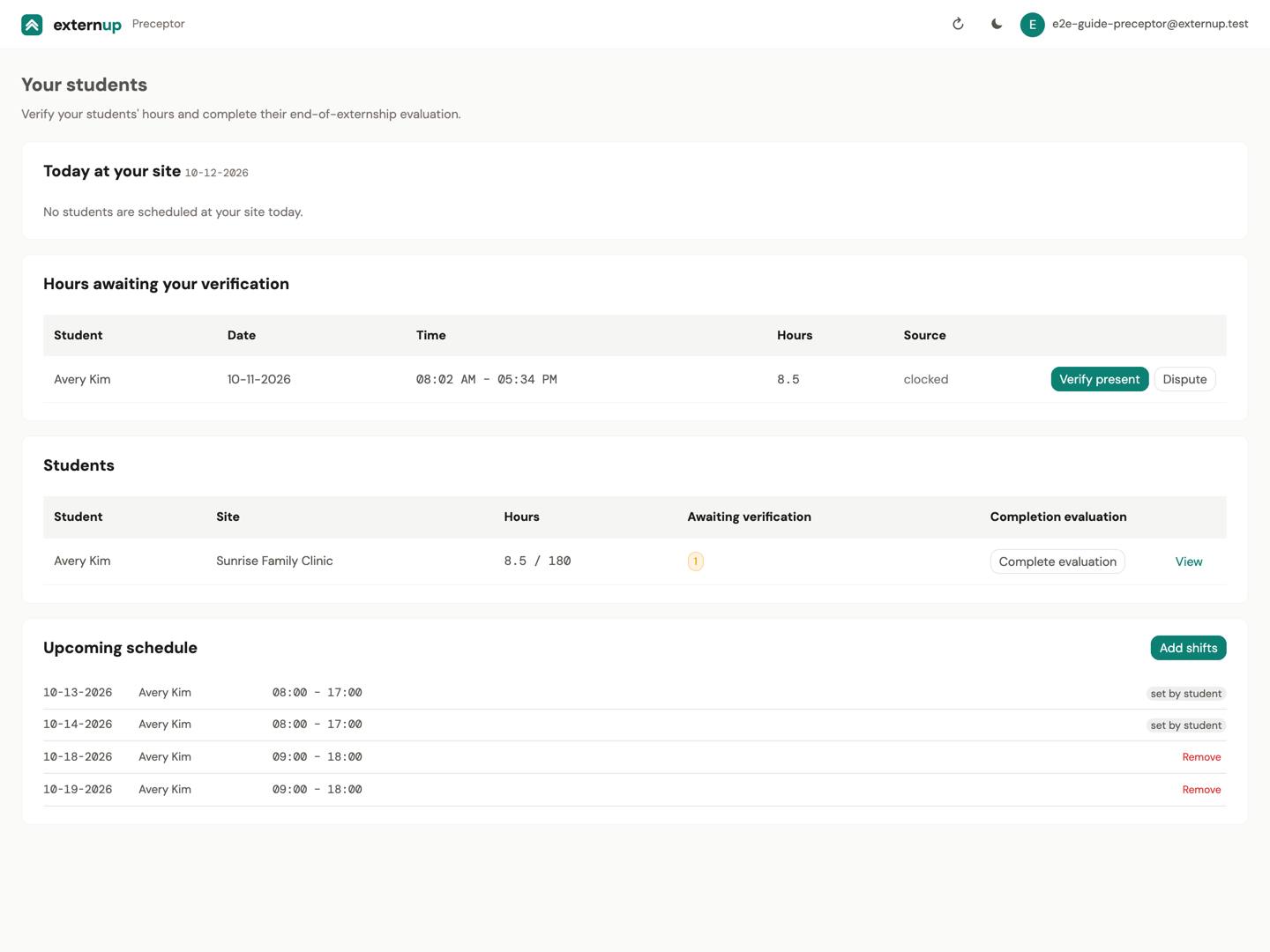
What you can do there
- Hours awaiting your verification. Each clocked day appears with the time and hours. Tap Verify present, or Dispute and say why. Days a student typed in afterwards are labeled entered by the student with their note.
- Students. Hours against the requirement, how many days await you, and View for the full timesheet and your history with that student.
- Upcoming schedule. Students add the days you agreed on from their app; you can add shifts too with Add shifts. Shifts land at the student's assigned site and need no approval.
- Completion evaluation. When the school ends the placement you get an email, Please complete <student>'s externship evaluation. Open Complete evaluation, answer the form, and sign by typing your full name.
What ExternUp keeps
Your name, work contact details and license information come from the school's preceptor directory. A verification records your answer, the time, and, for texted and QR links, the badge photo and the phone's location at that moment. Staff at the school can see them when reviewing the student's hours. Nothing is shared with anyone else. The full privacy policy and terms apply; using a verification link counts as accepting them.