 externup
ExternUp for students
Last updated October 12, 2026
ExternUp is how your externship hours get recorded: you clock in and out at your site from the app, your preceptor verifies you were there, and your school approves the hours. Ten minutes of setup, then it is a tap at the start and end of each shift.
Before your first shift
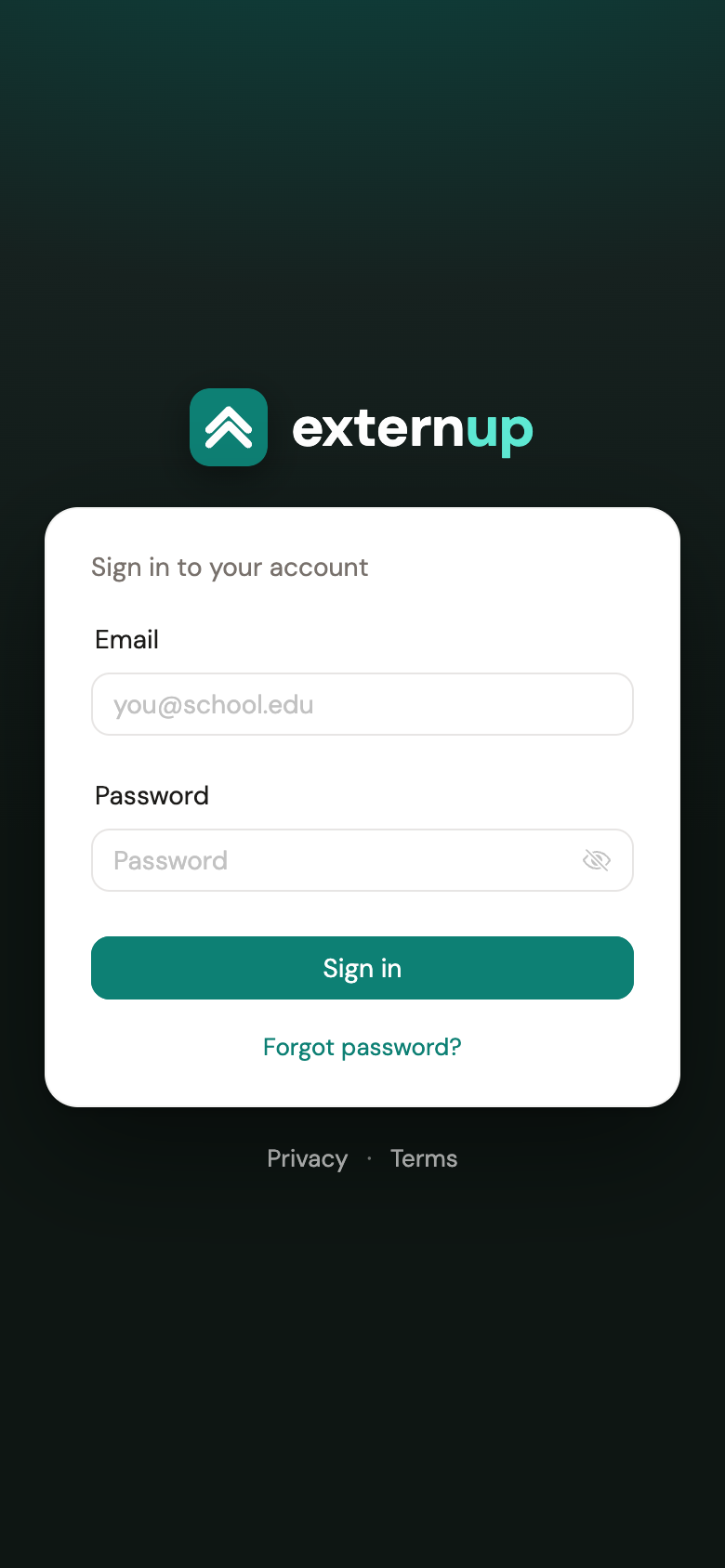
- Set your password. Your school sends an email, Set up your ExternUp account, to the address they have on file. Tap Set your password and choose one of at least 10 characters. The link works for 7 days; if it has expired, open it anyway and tap Send me a new link.
- Install the app. Search for ExternUp in the App Store (iPhone) or Google Play (Android) and sign in with your email and the password you just set.
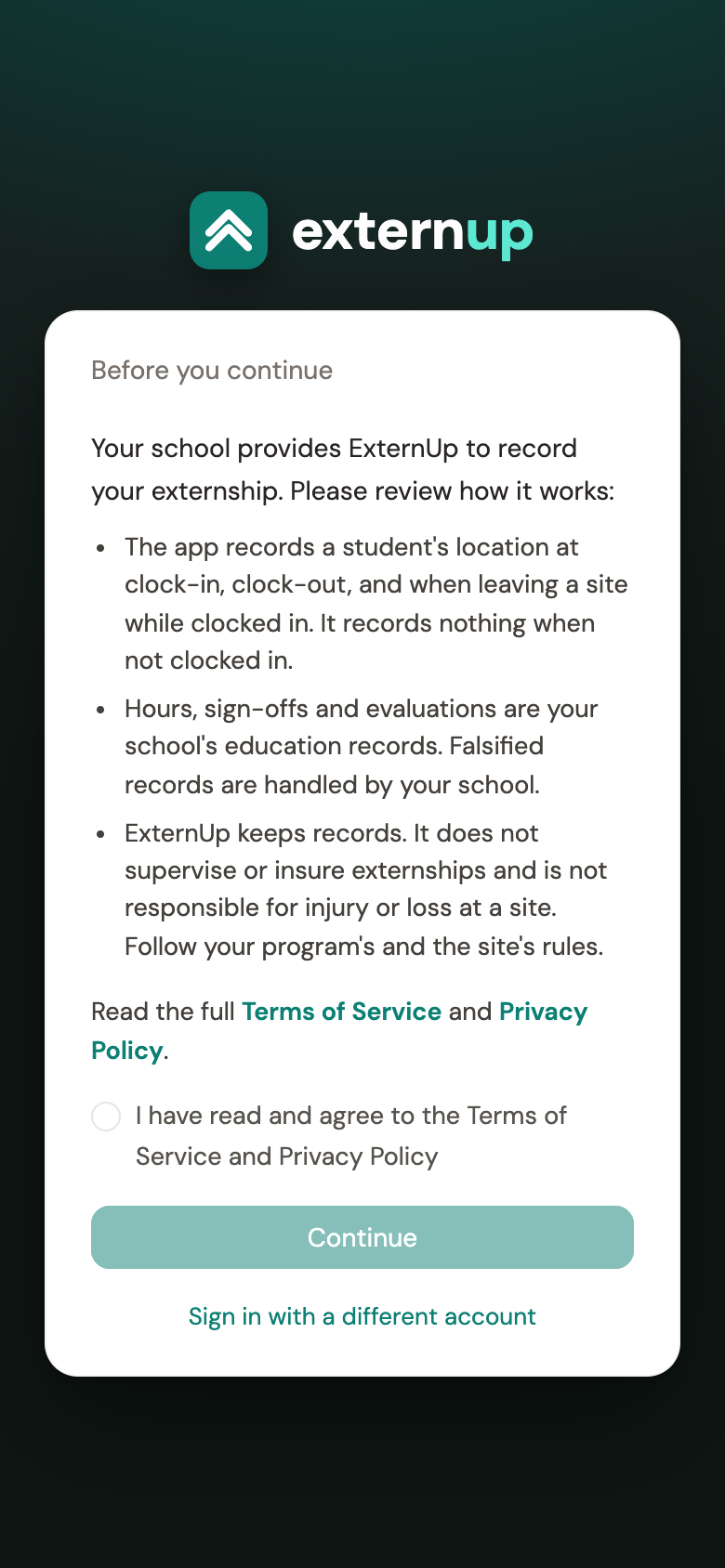
- Read and accept the terms. The first sign-in shows how ExternUp works, what it records, and the terms and privacy policy. Tick the box and tap Continue.
- Allow location and notifications when asked. The app records your location only when you clock in, clock out, and if you leave the site while clocked in, and never when you are not clocked in. If your program requires site monitoring (nursing programs do), location must be set to Always (Android: Allow all the time) with precise location on; the app explains this before the phone asks, and if the setting is wrong it tells you exactly where to change it and offers Open Settings.
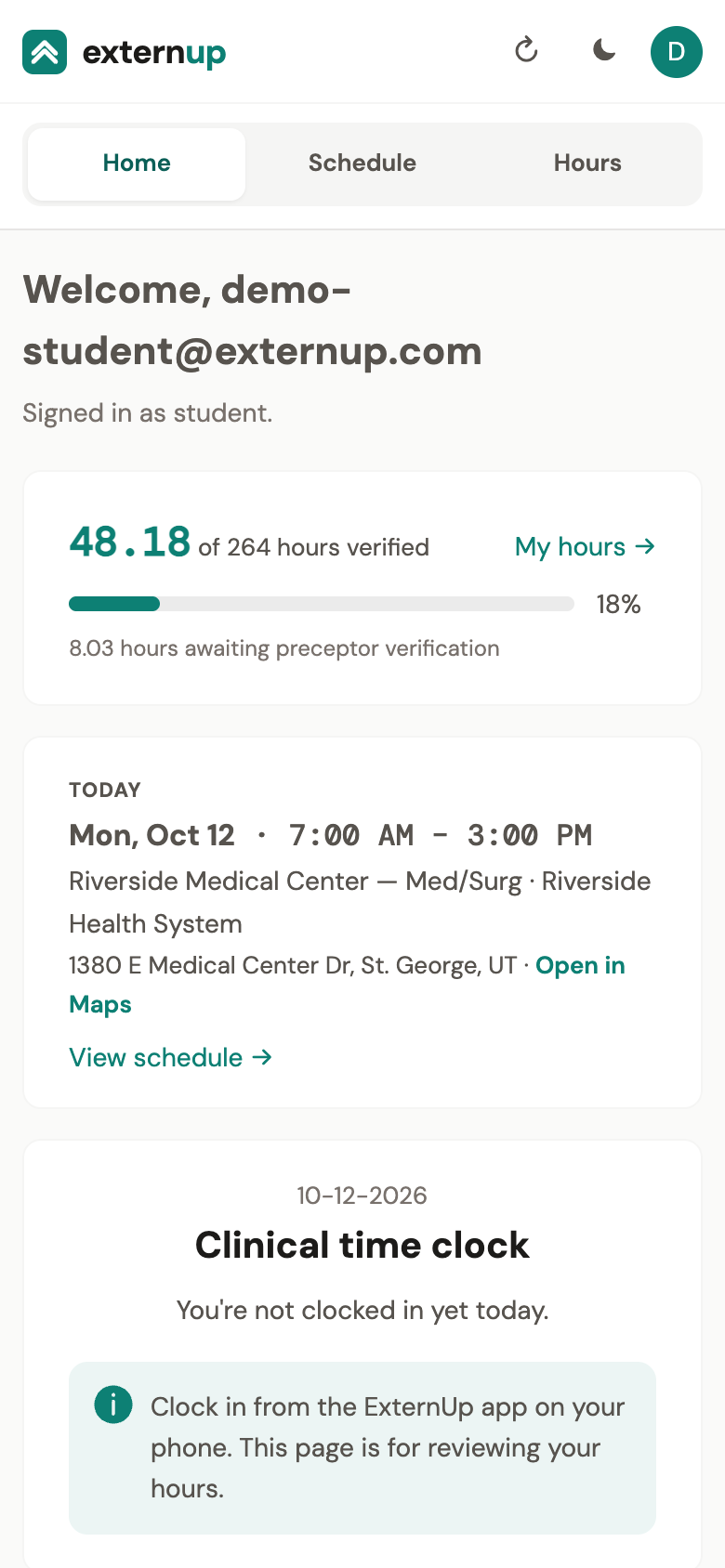
Home: your hours, today's shift, the clock
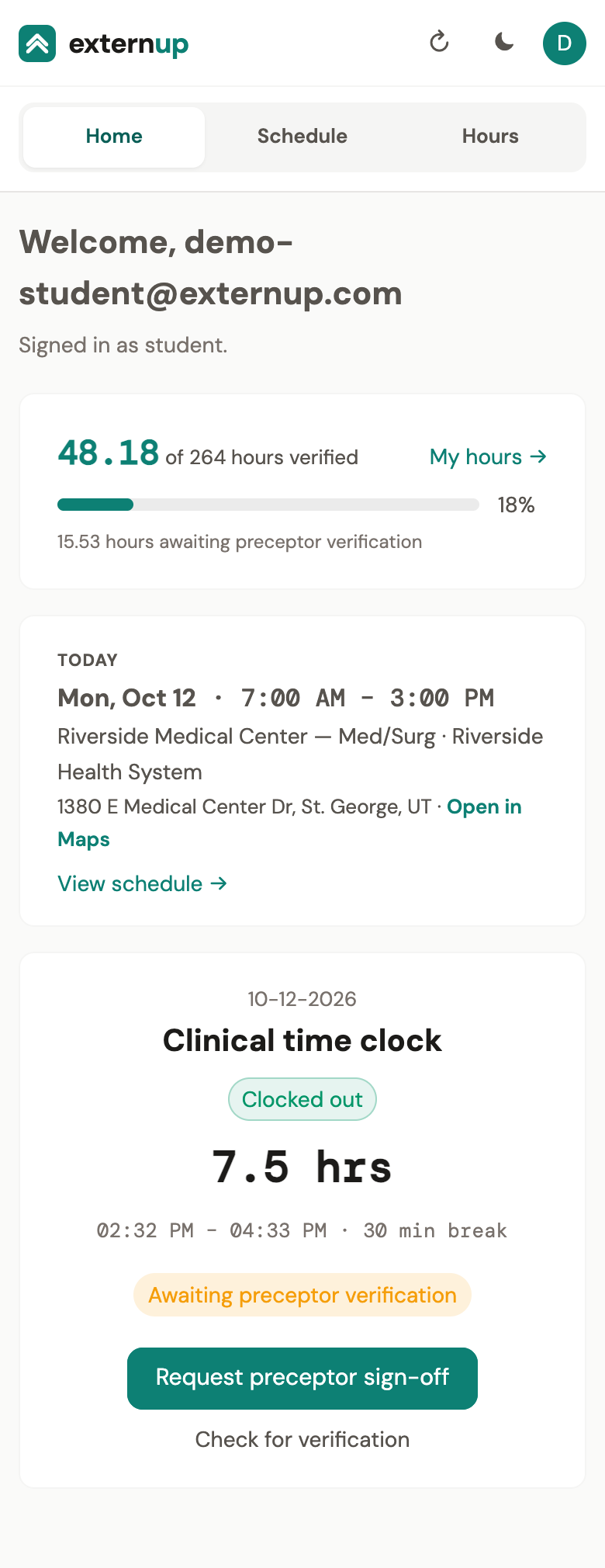
The app has three tabs: Home, Schedule and Hours. Home shows your verified hours against the requirement, today's shift (or the next one) with the site, time, address, an Open in Maps link and any note from your school, and the Clinical time clock.
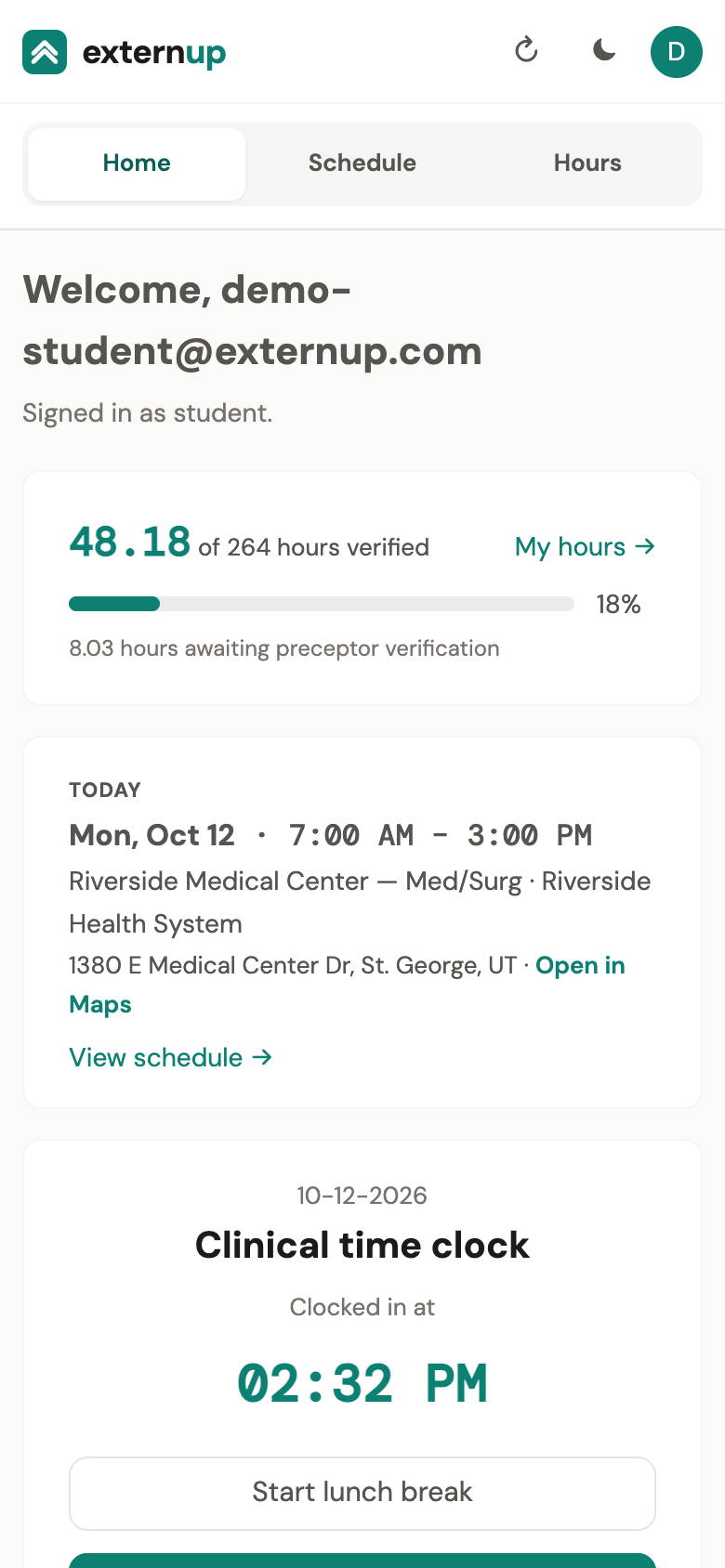
Clocking in and out
- When you arrive, open the app and tap Clock in. Do it at the site: the app checks your location against the site's pin, and a clock-in from somewhere else is flagged for your school to review.
- For an unpaid lunch, tap Start lunch break and later End lunch break. Break time is taken off your hours. End the break before you clock out.
- When you leave, tap Clock out.
Clocking in only works in the app, because the phone is what proves you were at the site. The web version of your account (app.externup.com in a browser) is for reviewing your hours. It can still clock you out and end a break if your phone dies.
Site monitoring. While you are clocked in, the app notices if you leave the site. If your phone reports you away for more than a few minutes outside a break, you get a notification, Still at <site>?, and a banner in the app with Confirm my location. If you are still there, one tap clears it as a GPS glitch. Breaks are always fine.
Flags. Sometimes a day is sent to your school for review: no shift was scheduled that day, you were outside the site area, you left the site for more than five minutes, or site monitoring was off. The clock tells you when that happened. A flag is a question for your instructor, not a penalty.
Your preceptor's sign-off (before you leave the unit)
For nursing students, each shift is verified by the preceptor who supervised you that day. While you are clocked in — or after you clock out — the clock shows Awaiting preceptor verification and a Request preceptor sign-off button.
- Tap Request preceptor sign-off before you leave the unit.
- Pick how to send it. Email a link to the preceptor's work email is the usual choice. Show a QR code lets them scan your screen with their phone camera. Text a link sends it to their mobile number.
- Your preceptor opens the link, confirms you were present, and, for a texted or QR link, takes a quick photo of their work badge. No account is needed on their side and it takes under a minute.
- The status on your clock updates by itself (or tap Check for verification). Once it reads Verified present by preceptor, your school approves the hours and they count toward your total.
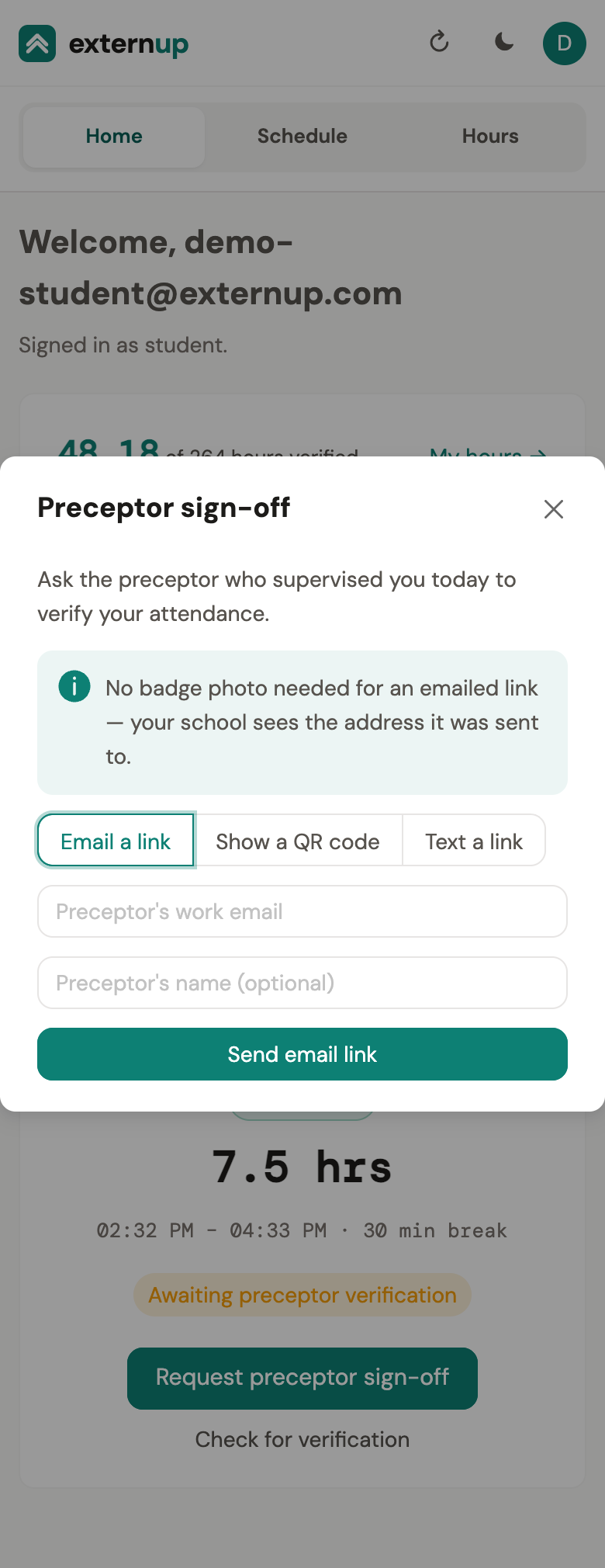
- A link works once and for 24 hours. If your preceptor did not get to it, send it again; the new link replaces the old one.
- If your program has a Daily review, the button appears next to the sign-off. It is a short reflection on the shift.
- If your preceptor answers No, the day shows Disputed — staff will review. Your instructor looks into it and you are emailed the outcome.
- Pharmacy students do not request anything: your preceptor verifies your days from their own portal, and the clock says Your preceptor will verify your hours.
Your schedule
Nursing
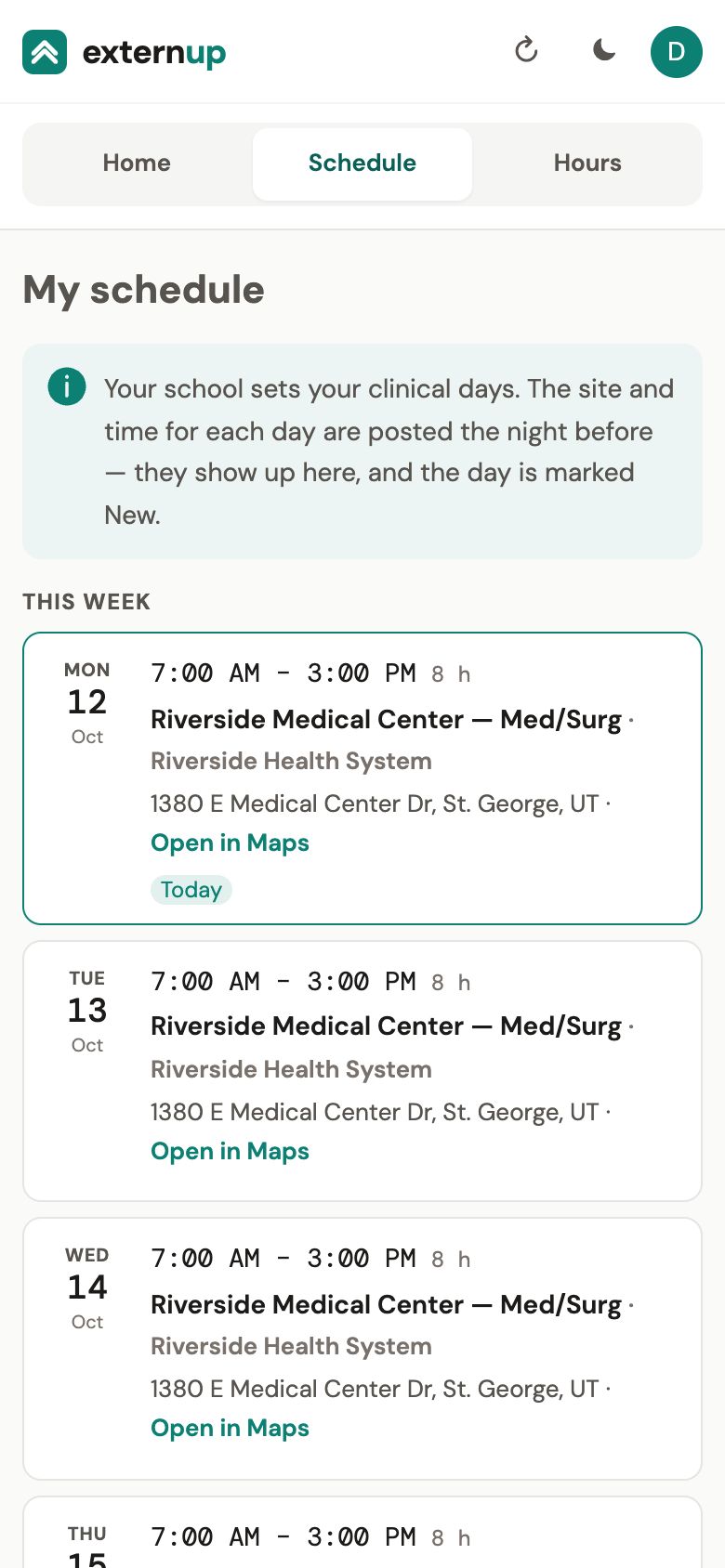
Your school sets your clinical days. The site and time for each day are posted the night before: you get an email, Posted: your clinical assignment for …, and the day shows up marked New with the address, Open in Maps, the note from your school and the site's instructions (parking, entrance, dress code). Until it is posted, the day reads Site and time are posted the night before.
Pharmacy
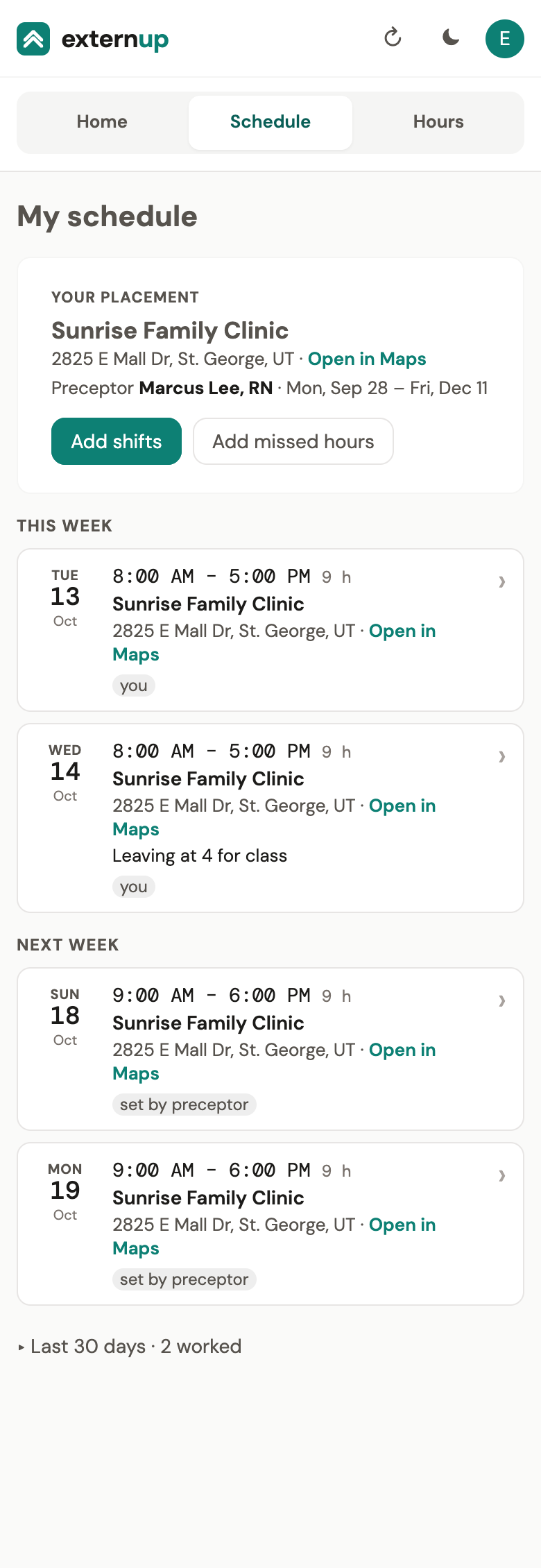
Your school assigns your site and preceptor, shown at the top of the Schedule tab under Your placement. You add the days you agreed on with your preceptor:
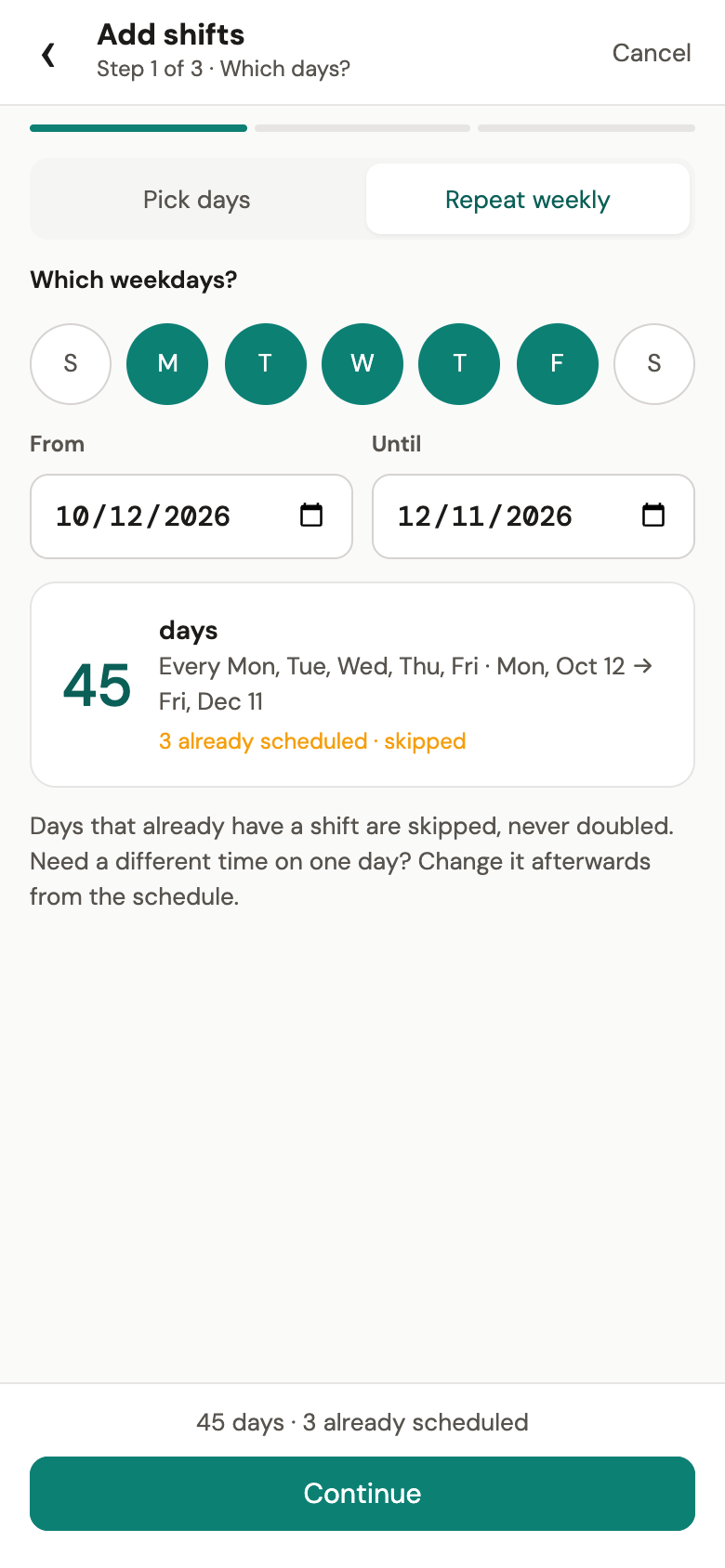
- Tap Add shifts. Choose Pick days to tap days on the calendar, or Repeat weekly for a pattern like Monday to Wednesday from one date to another. Days that already have a shift are skipped.
- Set the hours once for all the days (the pharmacy day of 8:00 AM – 5:00 PM, your last-used hours, or custom), add a note if you like, and review. Shifts at your assigned site need no approval; your preceptor and your school see them right away.
- Tap a shift you added to change its date, hours or note, or to remove it. Shifts your preceptor or school set are shown with who set them; ask them to change those.
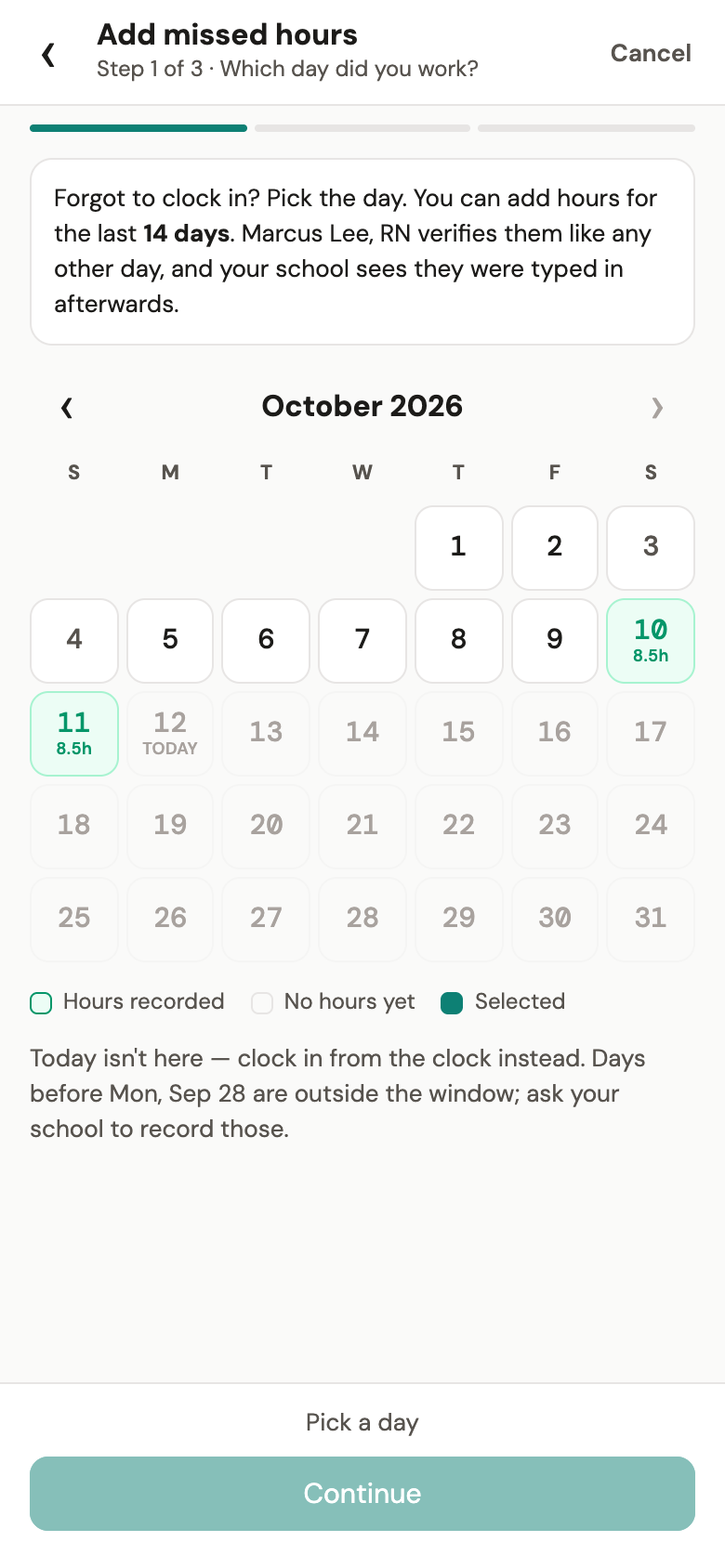
Forgot to clock in? Add missed hours lets you type in a day from the last 14 days: pick the day, enter your in and out times and lunch, and say why. It is marked as entered after the fact, your preceptor verifies it like any other day, and you can remove it until they do. Today is not offered: clock in instead.
Your hours
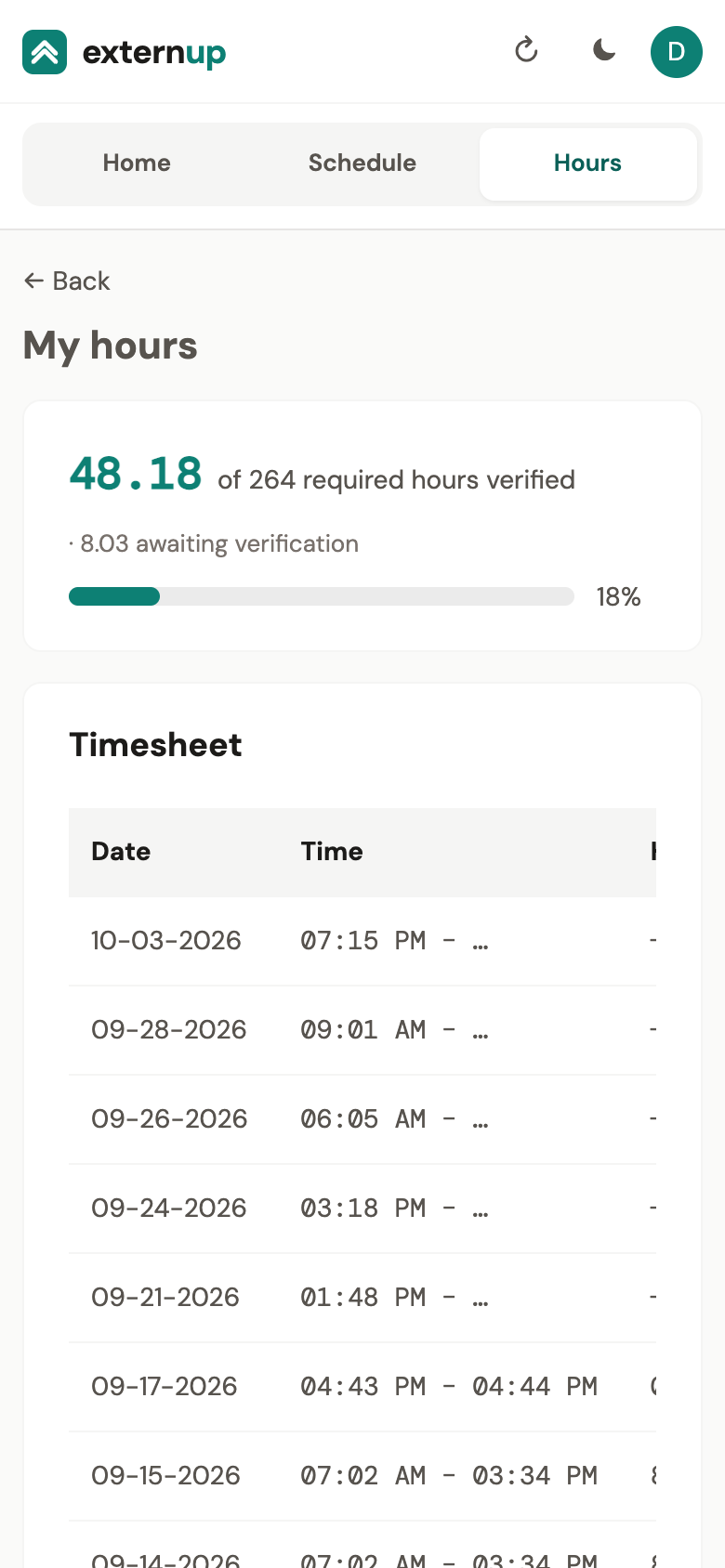
The Hours tab shows your verified hours against the requirement, how many are awaiting verification, and your timesheet: each day with its times, hours and status (awaiting verification, verified present or disputed). Your school's approval happens on their side; verified hours are what count.
When a pharmacy externship ends, a banner on Home asks you to evaluate your site. It takes a few minutes and helps place future students.
If something goes wrong
| Problem | What to do |
|---|---|
| My phone died while I was clocked in | Sign in at app.externup.com on any computer or borrowed phone and tap Clock out. If you could not clock in at all, tell your instructor: they can record the day for you. |
| The app says location must be set to Always | Tap Open Settings and set ExternUp's location to Always (Android: Allow all the time) with precise location on. Your program requires it to clock in. |
| My invitation link expired | Open it anyway and tap Send me a new link, or ask your instructor to resend the invitation. |
| I forgot my password | Forgot password? on the sign-in screen. The link works for 1 hour. |
| My preceptor's link expired or did not arrive | Tap Request preceptor sign-off again. Check the email address or number, or use the QR code in person. |
| The app says my externship is not active | Your school controls this. Talk to your instructor. |
| A shift is wrong | Nursing: ask your instructor. Pharmacy: tap the shift to change it if you added it; otherwise ask whoever set it. |
| Something else | Your instructor can fix most things from the school's portal. For app problems, Support or externup@dixietech.edu. |